Why Does My Dash Cam Keep Saying Memory Card Full
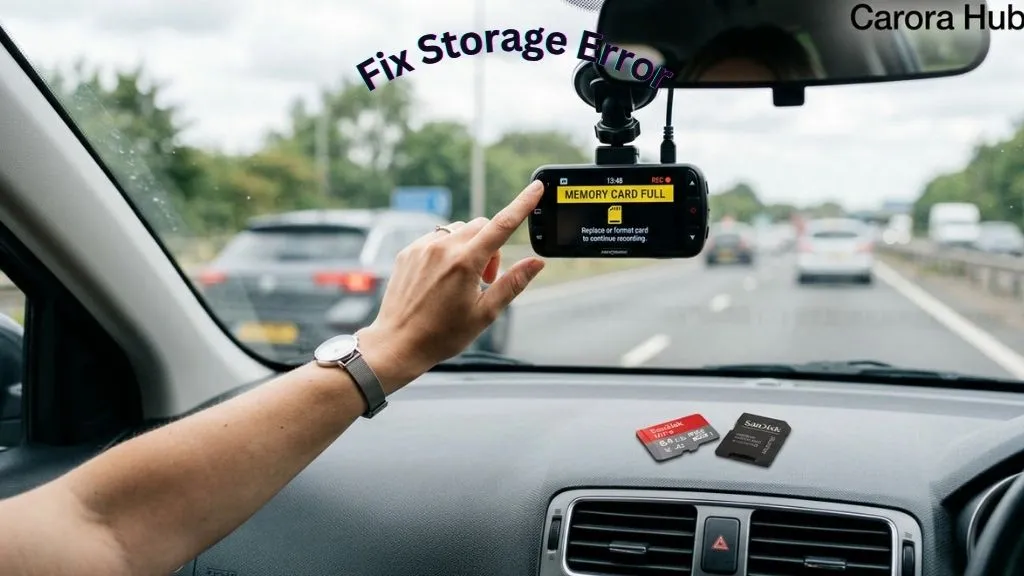
Dash cams are now a must-have for many drivers. They record accidents, document trips, and catch surprising moments. But one message can ruin the day: “Memory Card Full.” You might think, “My dash cam has loop recording — why is it stopping?” I’ve seen this issue many times. It can be annoying and confusing.
Fixing a “memory card full” message often saves time and money. The cause is not always “buy a bigger card.” The real reason can be a setting, a card type, wear and tear, or a software issue. In this guide I’ll walk you through every common cause. I’ll also show practical fixes and prevention tips I use myself. By the end, you’ll know how to solve the problem and keep it from coming back.
How Dash Cams Use Memory Cards
A dash cam records video all the time while you drive. It saves that video in short files. Typical file lengths are 1 to 5 minutes. When space runs low, most dash cams use loop recording. Loop recording overwrites the oldest files so the cam keeps recording without you deleting files manually.
That system usually works well. But it can fail. Some files are “protected” and can’t be overwritten. Some cards slow down or go read-only. A mismatch in format or size can break overwrite logic. Small differences in behavior between dash cam models also matter. I’ll explain each cause and what to do about it.
Top Reasons Your Dash Cam Says Memory Card Full
Below are the most common causes. I present them as short, clear points so you can diagnose the issue fast.
1. Parking Mode Or Protected Files Not Being Overwritten
Many dash cams lock files when they detect an impact. This is parking mode or G-sensor locking. Locked files are marked as protected. The dash cam will not overwrite them. That is by design. It keeps key footage safe after a crash.
But if you park in busy places or set the sensor too high, you can end up with many protected files. These files pile up. Loop recording cannot remove them. Over time the card fills and the cam shows “memory card full.”
Example
I once helped a driver who parked on a busy street. His dash cam was set to high sensitivity. After a week, more than 60% of his 32GB card held locked files. Lowering sensitivity and clearing old protected videos fixed it.
2. Incorrect Or Incompatible Memory Card
Not every memory card handles constant video recording. Dash cams write many small files quickly. Cheap or slow cards may fail to keep up. Some cards are not the right type or size for your dash cam. That can stop the overwrite cycle.
Why Card Type And Speed Matter
- MicroSD cards are standard for dash cams.
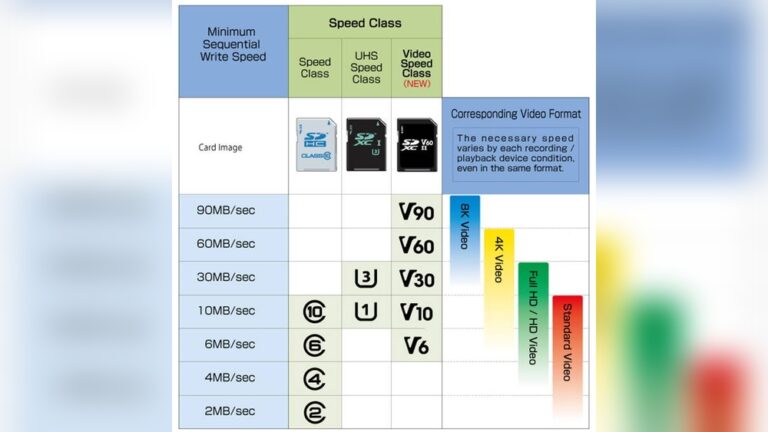
- Choose Class 10 or UHS-I / U3 for HD or 4K video.
- Check your dash cam’s max supported size: 32GB, 64GB, 128GB, etc.
A slow or unsupported card may miss writes. Then files don’t overwrite correctly and the cam reports full. Use cards tested for continuous video to avoid this.
Quick Comparison Of Card Types And Compatibility
| Card Type | Speed Class | Typical Use | Dash Cam Suitability |
|---|---|---|---|
| MicroSDHC | Class 4 | Basic storage | Poor |
| MicroSDHC | Class 10 | HD video | Good |
| MicroSDXC | UHS-I/U3 | 4K video, fast write | Best |
3. Memory Card Needs Formatting
Repeated writing and deleting can fragment the file system. Over time the card can act full even when space exists. Formatting resets the file system. It often fixes this exact problem.
Manufacturers often advise formatting the card regularly. For many users, that means once a month. Formatting clears errors and improves reliability.
Real-world Example
A driver waited six months to format. The dash cam stopped recording and showed “card full,” even though only a few files were on the card. Formatting fixed it immediately.
4. Card Write Protection Or Locked Switch
Some SD cards have a physical write-protect switch. If the switch is locked, the dash cam cannot write or overwrite. MicroSD cards lack this switch, but they can behave as read-only after a failure. If your card is locked at the hardware or software level, the cam will report it as full.
5. Large Files From High Resolution Or Bitrate
Higher resolution and higher bitrate produce bigger files. A 4K file can be many times larger than a 1080p file. If you use high settings on a small card, space runs out fast. Loop recording still works, but the card may hold only a few hours of footage.
Typical File Sizes By Quality
| Resolution | Bitrate | 1-Minute File Size | Approx. Hours on 32GB Card |
|---|---|---|---|
| 720p | Low | 60 MB | ~8 |
| 1080p | Medium | 100 MB | ~5 |
| 4K | High | 250 MB | ~2 |
If you need more recording time, lower resolution or buy a larger, high-endurance card.
6. Faulty Or Worn-out Memory Card
Dash cams write many times each day. Even quality cards wear out. A worn card may switch to read-only mode or develop bad sectors. When that happens, the dash cam can’t overwrite files, so it flags the card as full.
Industrial-grade or high-endurance cards hold up better for this use. They are built for continuous writes. I always recommend them for daily drivers.
7. Card Size Exceeds Dash Cam Limit
Some dash cams only support cards up to a certain size. If you insert a larger card, the cam may not manage it correctly. It may use only part of the card, or fail to overwrite. This can show as “memory card full” while space remains available.
Always check your camera manual for the max supported card size and recommended formats.
8. Card Format Not Supported (fat32, Exfat, Ntfs)
Cards use file systems like FAT32, exFAT, or NTFS. Most dash cams accept FAT32 (for ≤32GB cards) or exFAT (for larger cards). If the card uses an unsupported format, the cam may not write correctly or overwrite files.
9. Dash Cam Firmware Issues
Sometimes the dash cam’s firmware has bugs. Old firmware can cause false “card full” warnings, failed loop recording, or write errors. Manufacturers release updates to fix these problems. Keep your firmware current to avoid known bugs.
10. User Error Or Misunderstanding Settings
Human error is common. You might turn off loop recording by accident. Or set the cam to record only when triggered. Deleting files on a computer can leave them in a hidden recycle folder. Dash cams may also use separate folders for protected and normal files. If you delete only one folder, space might not free up as you expect.
11. Card Not Inserted Properly
This is simple but common. If the card is not clicked in, the dash cam may not read or write. Confirm the card is fully seated and recognized in the camera’s menu.
12. Extreme Temperatures Affecting Card Performance
Cars get very hot in summer and very cold in winter. Some cards fail under extreme temperatures. That failure can show as “card full” or “card error.” High-endurance cards usually handle heat and cold better.
13. File System Corruption Or Bad Sectors
Bad sectors or a corrupted file system prevent the card from using all its space. The dash cam may fail to overwrite files or save new ones. This often looks like the card is full even when it is not.
14. Firmware Or App Conflicts (for Wi-fi/bluetooth Dash Cams)
When a dash cam pairs with an app, the app can lock files or folders without you noticing. That prevents the dash cam from managing those files. If you use the mobile app often, check for app updates and for any settings that lock files.
15. Unusual Recording Modes (time-lapse, Dual Channel)
Time-lapse and dual-channel (front + rear) modes create many files or much larger files. If you turn these on unintentionally, the card will fill faster. Check your mode settings if you notice rapid space usage.
16. Not Enough Free Space For New Files
Many dash cams need a small amount of free space to start a new file. If the card is 95% full, the cam may refuse to record. Deleting some files or formatting can restore that buffer and let recording resume.
17. Hidden Or System Files Taking Up Space
When you use a computer with the card, hidden files can appear. These include thumbs.db, .DS_Store, or temporary app folders. They take space but may not show on the dash cam’s menu. On a PC or Mac, turn on “show hidden files” to find and remove them.
18. Using Card With Other Devices
Using the same card in phones, cameras, or computers invites trouble. Other devices may change the file structure or leave files behind. I recommend dedicating one card to your dash cam only.
How To Fix The “memory Card Full” Problem
Here are practical steps that fix most “memory card full” issues. I use these steps when I troubleshoot dash cams. They are safe and work for most models.
Step 1: Check And Remove Protected Files
- Insert the card into your computer.
- Look for folders named “EVENT,” “PROTECTED,” or “LOCKED.”
- Move any important videos to your computer. Then delete the rest.
- If your dash cam offers a menu option to delete all locked files, use it.
Pro Tip: If you get too many locked files, lower the G-sensor or parking-mode sensitivity. That reduces false triggers while parked.
Step 2: Format The Memory Card Regularly
- Back up videos you want to keep.
- Format using the dash cam’s built-in format function if possible.
- If formatting on a computer, use FAT32 for up to 32GB and exFAT for larger cards.
- Re-insert the card and let the dash cam reinitialize it.
Expert Insight: Formatting from the dash cam is best. It sets up the file system the camera expects and avoids hidden issues from PC formatting tools.
Step 3: Use The Correct Card Type And Size
- Pick a card labeled high-endurance or industrial-grade.
- Choose at least Class 10 or UHS-I / U3 for HD/4K.
- Respect your dash cam’s max card size from the manual.
Step 4: Update Dash Cam Firmware
- Go to the official website for your dash cam brand.
- Download the latest firmware file.
- Follow the install steps from the manufacturer.
- Restart the dash cam and test recording.
Step 5: Adjust Recording Settings
- Lower resolution or bitrate to increase recording time.
- Ensure loop recording is enabled.
- Turn off parking mode or time-lapse if you don’t need them.
Step 6: Check For Physical Or Environmental Issues
- Inspect the card for cracks or damage.
- Try the card in another device to confirm it reads/writes.
- Store spare cards in a cool, dry place to protect them from heat.
Step 7: Avoid Mixing Cards And Devices
- Use one card only for your dash cam.
- Avoid moving the card between phones, cameras, and PCs.
- If you must reuse it elsewhere, always reformat it before returning it to the dash cam.
Step 8: Replace Old Or Failing Memory Cards
- If errors repeat, replace the card with a new, trusted brand.
- Daily-use cards often last 6–12 months. High-endurance cards last longer, but still replace them annually if used heavily.
Step 9: Monitor For Hidden/system Files
- On a computer, enable “show hidden files.”
- Back up important videos, then delete unknown hidden files or folders.
Step 10: Reset Dash Cam To Factory Settings
If nothing else works, reset your dash cam to factory defaults. This clears misconfigurations and some firmware glitches. Back up anything important first.
Learn More: How to Hide Dash Cam Wires Without Removing Trim
Preventing Memory Card Problems In The Future
Fixing the issue is good. Preventing it is better. These habits cut down on errors and extend card life.
- Format the card monthly. This keeps the file system clean.
- Use high-endurance cards for continuous recording.
- Back up important clips regularly to a PC or cloud.
- Keep your dash cam firmware updated.
- Check card health with manufacturer tools if available.
- Avoid extreme heat. Park in shade or use a sunshade when possible.
- Don’t mix the card between devices.
- Set G-sensor sensitivity to a level that avoids false locks.
- Replace aging cards—plan for a swap every 12 months if you drive daily.
Real-world Scenarios: What Really Happens
Here are a few real examples. They show how small settings or the wrong card cause the “memory card full” message.
Scenario 1: The Taxi Driver’s Dilemma
A taxi driver ran a 32GB card 12 hours daily. After three months he saw “memory card full.” Over 70% of the card had protected files. Each passenger door slam created a locked clip. He lowered the sensitivity and formatted the card monthly. The issue stopped.
Scenario 2: The 4k Overload
Someone set the cam to 4K and used a 32GB card. The card filled in about two hours. Each minute was ~250MB. Switching to 1080p doubled his recording time. He kept the footage he needed and bought a 128GB high-endurance card for long trips.
Scenario 3: The Cheap Card Catastrophe
One driver bought a no-name microSD online to save money. After a month, the dash cam stopped overwriting files and kept showing “card full.” The card developed bad sectors and was effectively read-only. Switching to a branded high-endurance card solved the issue.
What To Look For When Buying A Dash Cam Memory Card
Choosing the right card matters. Here’s what I look for when buying one:
- Endurance rating: Pick cards labeled “high-endurance” or “industrial.”
- Brand reputation: I trust SanDisk, Samsung, Kingston, and Transcend.
- Card class: Use Class 10 or UHS-I / U3 for HD and 4K.
- Size: 32GB for light use, 64GB for regular use, 128GB+ for 4K or dual-channel cams.
- Temperature resistance: Cards rated for heat and cold last longer in cars.
Card Comparison Table
Here’s a quick look at popular memory cards for dash cams:
| Brand | Endurance Rating | Max Size | Speed Class | Temperature Range |
|---|---|---|---|---|
| SanDisk High Endurance | High | 256GB | UHS-I/U3 | -25°C to 85°C |
| Samsung PRO Endurance | Very High | 256GB | UHS-I/U3 | -25°C to 85°C |
| Transcend High Endurance | High | 128GB | Class 10 | -25°C to 85°C |
Non-obvious Insights Most Beginners Miss
- Formatting is not optional. Regular formatting prevents subtle file system errors that cause lost footage.
- “High-endurance” means the card is tested for thousands of write cycles. It lasts far longer in dash cam use than a standard photo card.
- Unused features such as parking mode or motion detection can quietly fill your card. Review settings if space vanishes fast.
- Mixing devices invites hidden file issues. A card that works in your phone may not behave well in a dash cam.
When To Replace Your Memory Card
Memory cards wear out. If you use your dash cam daily, plan to replace the card every 12–18 months. Replace it sooner if you see these signs:
- Frequent “card full” or “card error” messages.
- Files fail to save or become corrupted.
- The card becomes read-only or cannot be formatted.
- The card heats up oddly during use.
Trusted Resources
For deeper technical details on card speed and standards, visit the SD Association. They explain speed classes, endurance, and compatibility in detail.
FAQs Of Why Does My Dash Cam Keep Saying Memory Card Full
Why Does My Dash Cam Say Memory Card Full Even With Loop Recording Turned On?
This most often means protected files are using space. Loop recording only overwrites normal files. Protected clips from parking mode or the G-sensor are kept. Formatting the card or deleting locked files will usually fix the issue.
How Often Should I Format My Dash Cam Memory Card?
Format once a month if you use the dash cam often. This reduces file system errors and keeps recording reliable. Always back up important videos first.
What Type Of Memory Card Is Best For Dash Cams?
Use a high-endurance microSD card with Class 10 or UHS-I / U3 speed. Brands like SanDisk, Samsung, and Transcend are solid choices. Match the card size to your need and to the camera’s max supported size.
Can I Use My Phone Or Camera Memory Card In My Dash Cam?
It’s not recommended. Phone and camera cards are meant for burst shots and photos, not for constant video writes. They may fail faster in a dash cam. Also, using the card across devices can change formats or leave hidden files.
What Should I Do If My Dash Cam Keeps Showing Errors After Trying All Solutions?
If you’ve formatted, updated firmware, and tried a new high-quality card but still see errors, the dash cam itself may be faulty. Contact the manufacturer for support. If they confirm a hardware issue, consider replacing the unit.
Dash cams are very useful when they record reliably. Learn how memory cards work. Keep them formatted. Use the right cards and settings. With these habits, you will avoid most “memory card full” headaches and keep your footage safe.

I am Julian Drive, an automotive enthusiast and repair expert with over 7 years of hands-on experience in vehicle maintenance. At Carora Hub, I simplify complex car issues into easy-to-follow DIY guides to help drivers stay safe and save on repair costs.