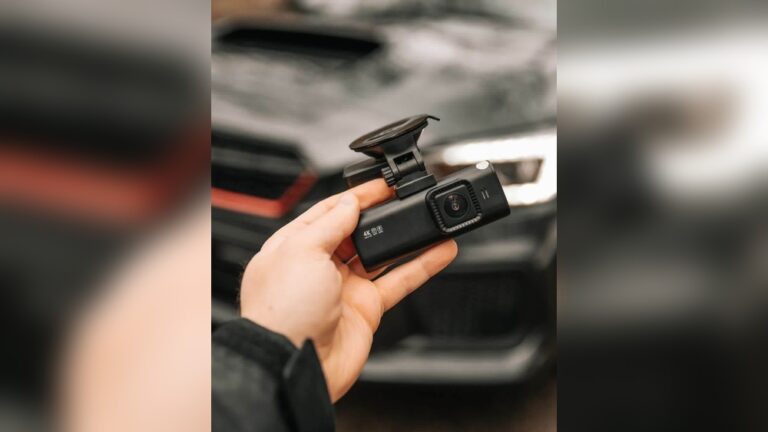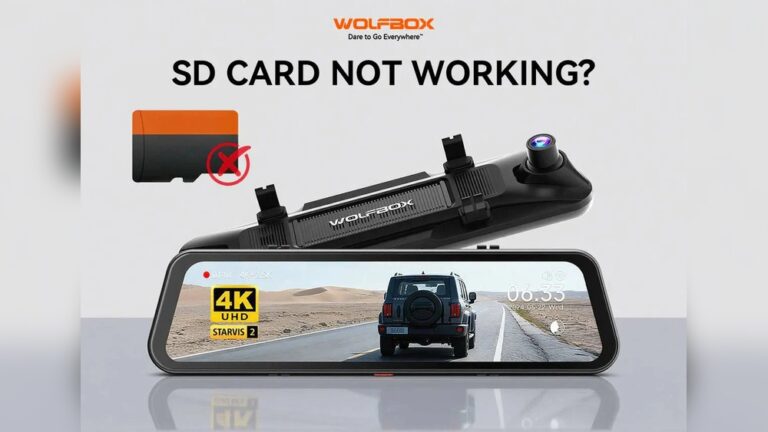
Every day, millions of drivers rely on dash cams for security, evidence, and peace of mind. When a dash cam stops recording or files become corrupted, it feels stressful. I’ve been there panicking after a long trip when footage won’t play. The good news: most dash cam recording errors are fixable with a few simple steps. You don’t need to be a tech expert.
This guide explains common dash cam recording problems, why they happen, and step-by-step fixes I use in real life. You’ll get practical troubleshooting, clear examples, and recommendations for reliable gear. Whether your dash cam freezes, won’t save footage, or creates unreadable files, you’ll find solutions here.
Let’s get your dash cam recording reliably again.
Understanding Dash Cam Recording Errors
Before we fix anything, it helps to know how these problems show up. I find that recognizing symptoms speeds diagnosis. Common signs include:
- The dash cam doesn’t record at all.
- Videos are missing or corrupted.
- Files won’t play on your computer or phone.
- Recordings stop suddenly while driving.
- The camera freezes or restarts itself.
Most issues come from problems with memory cards, power supply, camera firmware, or settings. External factors heat, cold, vibrationalso matter. Knowing the likely cause helps pick the right fix quickly. Sometimes the error is obvious (camera shuts down). Other times you only notice missing clips later.
Types Of Dash Cam Recording Errors
- No video files found: Camera looks on, but footage is missing. Often a card not inserted correctly or a bad card.
- Corrupted files: Files exist but won’t play, are incomplete, or show errors. Sometimes file size is zero.
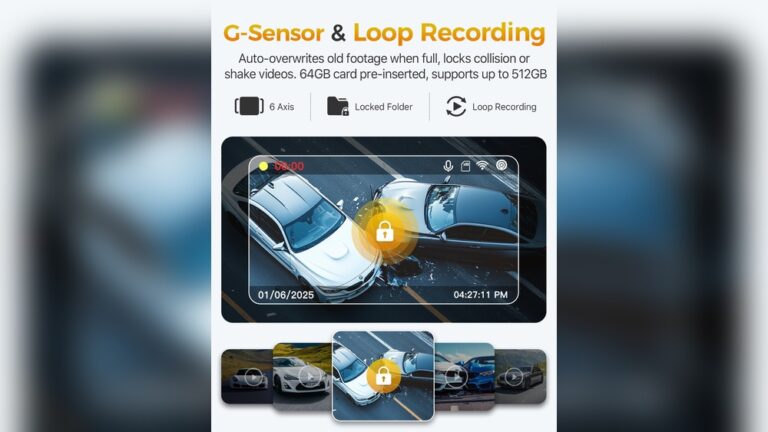
- Loop recording failure: Old files aren’t overwritten. The card fills up and new footage stops saving.
- Camera freezing: Device becomes unresponsive, screen goes black, or it reboots.
- Recording stops randomly: Footage cuts out without warning, leaving gaps.
Each type needs a slightly different approach. Below I walk through the common causes and show the fixes I use most often.
Common Causes Of Dash Cam Recording Errors
Finding the root cause is step one. Here are the usual suspects I check first:
Faulty Or Incompatible Memory Cards
Dash cams use microSD cards to store footage. Cheap or worn cards fail fast. Dash cams need cards built for constant write cycles—called high-endurance cards. Generic cards often wear out in months with daily use.
Data point: A 2023 dash cam reliability survey found over 60% of recording errors trace back to memory cards.
Many dash cams require specific speed classes (UHS-I, Class 10) or app-level ratings like A1/A2. If the card is too slow, the camera may drop frames or create broken files. Also remember: microSD cards have finite write cycles—regular cards can fail quickly under 24/7 recording.
Power Supply Issues
Unstable power causes sudden shutdowns, gaps in video, and corruption. Problems can come from a loose cigarette socket, damaged USB cable, poor hardwire installation, or a weak car battery.
Symptoms include random restarts, loss of recording when hitting bumps, or issues tied to the car’s start-stop system. Hardwired installs can fail with a blown fuse or poor ground. If you see sudden power loss during driving, check voltage and connections.
Firmware Bugs
Firmware is that small OS inside the dash cam. Outdated or buggy firmware can cause freezes, file errors, or failed loop recording. Manufacturers release firmware updates to patch bugs. But many users never update.
Bad firmware may misread a memory card, mis-handle event files, or crash the camera. If you see odd behavior after an update, re-check that the firmware file matches your exact model.
Incorrect Settings
Settings matter. Wrong loop options, file length, or too-high resolution can cause missed footage or corrupted files. For example, if loop recording is off, the card fills and the camera stops saving. Or setting max resolution with a slow card leads to dropped frames.
Event sensitivity (G-sensor) set too low can miss collisions; set too high it fills the event folder with false positives. Always confirm defaults after firmware updates or resets.
Physical Damage Or Environmental Factors
Dash cams live in a hot, vibrating, dusty environment. Extreme heat can warp plastic and damage internal parts. Cold can cause condensation and short circuits. Physical knocks can loosen mounts or cables, leading to intermittent power or bad footage.
In hot climates the card can overheat and corrupt files. In cold climates, condensation on lens or contacts creates electrical shorts. Secure mounting and proper ventilation help a lot.

Credit: ldas.ca
Step-by-step Solutions For Dash Cam Recording Errors
Now for fixes. Work through these steps in order. I recommend trying them exactly as listed: memory card first, then power, firmware, and settings. That order solves most problems fast.
1. Check And Replace The Memory Card
Memory cards are the single biggest cause of recording errors. Start here when clips are missing or corrupted.
- Remove the card and look for cracks, warping, or dirty contacts. Clean contacts gently with isopropyl alcohol and a soft cloth.
- Format the card in your dash cam or on a computer. Use the filesystem the manufacturer recommends (FAT32 or exFAT).
- If problems persist, try a new high-endurance microSD card from SanDisk, Samsung, Kingston, or Transcend.
- Pick cards labeled “High Endurance” or rated A1/A2 for sustained writes.
Example: If your camera supports up to 128GB, avoid larger cards. Some dash cams don’t handle bigger sizes reliably.
Extra tip: Test a new card with several short trips and check playback. That confirms compatibility before you rely on it for important footage.
2. Inspect Power Supply Connections
Unstable power causes random stops and corrupted files. Check cables and power sources next.
- Inspect the power cable for frays, kinks, or loose connectors. Move the cable to see if the camera loses power.
- Swap cables or adapters to isolate the fault. Test the dash cam on another car outlet if possible.
- For hardwired setups, inspect fuses and wiring under the dash. If unsure, get a mechanic to verify your install.
- If your car battery is weak, replace it. Low voltage during engine start can reset or corrupt recordings.
Extra tip: Dash cams with capacitors handle short power drops better than ones with internal batteries. If your cam keeps losing power, check that component.
3. Update Dash Cam Firmware
Firmware updates fix bugs and improve stability. I update firmware whenever my dash cam acts odd.
- Visit the manufacturer’s official site and find firmware for your exact model number.
- Follow the update instructions—usually copying the firmware file to the card and powering on the camera.
- Only use firmware made for your model. Wrong firmware can brick the camera.
Tip: After updating, perform a factory reset and reformat the memory card. This gives the new firmware a clean start.
4. Reset Dash Cam Settings
Settings can silently cause problems. A quick factory reset clears bad configurations.
- Open the camera menu and choose “Factory Reset” or “Restore Defaults.”
- Turn loop recording on and choose file segments of 3–5 minutes. Shorter segments lower the risk of losing long footage if a file corrupts.
- If your card is slow, lower resolution to reduce write demands.
Extra tip: Enable event recording (G-sensor) for collisions, and test sensitivity so it records real events without too many false triggers.
5. Clean And Protect Your Dash Cam
Physical upkeep prevents many problems. I clean and check my dash cam monthly.
- Wipe dust from the lens with a microfiber cloth. Avoid harsh cleaners.
- Confirm the mount is secure and not vibrating. Tight mounts reduce blur and stress on connectors.
- Avoid extreme heat/cold. Remove the camera if parked in scorching sun for long periods.
- Use a sun visor or shade to limit direct sunlight on the camera body.
Extra tip: Check vents and cooling areas on the camera. Blocked vents raise internal temperature and cause shutdowns.
6. Test Recording And Playback
After fixes, test thoroughly. A quick drive and file check tell you if the issue is resolved.
- Drive 10–15 minutes and check several saved files, not just one.
- Remove the card and play files on a computer and phone. Try different players if needed.
- If playback works, you’re done. If not, repeat earlier steps in this guide.
Extra tip: If your dash cam supports Wi‑Fi or Bluetooth, try transferring files wirelessly to rule out card-reader faults.
Real-world Examples: Common Dash Cam Problems And Solutions
Real cases help. Here are two I’ve seen personally:
Example 1: Corrupted Files After A Long Trip
John drove across Texas in summer. His dash cam recorded for hours, but many files wouldn’t play. The camera used a cheap microSD card. After switching to a high-endurance card and formatting it, the problem went away.
Heat had damaged the old card and caused corruption.
Extra lesson: Extreme heat can destroy standard cards fast. Remove or shade your dash cam if parked under the sun for long periods.
Example 2: Dash Cam Stops Recording Every Hour
Maria’s dash cam stopped recording after about an hour. She discovered the power cable was loose, causing intermittent power loss. Replacing the cable and checking her car battery fixed it.
Extra lesson: Small cable faults cause big gaps. Check cables regularly, especially if you drive on rough roads.
Credit: iroad.kr
Dash Cam Memory Card Comparison
Choosing the right memory card is key. These options work well for dash cams:
| Brand | Type | Endurance Rating | Max Size Supported | Price (Approx.) |
|---|---|---|---|---|
| SanDisk High Endurance | microSD | 10,000 hours | 128GB | $25 |
| Samsung PRO Endurance | microSD | 43,800 hours | 256GB | $40 |
| Kingston High Endurance | microSD | 20,000 hours | 128GB | $28 |
| Transcend High Endurance | microSD | 17,000 hours | 128GB | $30 |
Insight: Regular microSD cards wear out fast in dash cams. Always pick high-endurance cards and check the camera’s compatibility list.
Extra tip: Check the warranty and supported sizes when buying. Some dash cams don’t support the largest cards, even if the card vendor lists them as compatible.
Troubleshooting Loop Recording Issues
Loop recording overwrites old footage when the card is full. If it fails, new footage stops saving. Here’s how to troubleshoot:
Fixing Loop Recording Problems
- Ensure loop recording is enabled in the settings.
- Pick a file length that matches your footage needs—1–3 minutes for busy urban drives, 3–5 minutes for general use.
- Format the card regularly to avoid file system errors.
- If files aren’t overwritten, the card might be locked, corrupted, or full—format or replace it.
Extra tip: Some cameras warn when the card is full but loop recording is off. Watch for on-screen alerts or LED indicators.
Loop Recording Settings Comparison
Common loop file lengths and when to use them:
| File Length | Pros | Cons | Recommended For |
|---|---|---|---|
| 1 Minute | Quick overwrite, small files | More files to manage | Short trips, busy cities |
| 3 Minutes | Balanced size | Moderate file count | Daily driving |
| 5 Minutes | Fewer files, easier review | Larger files, slower overwrite | Long journeys |
Non-obvious insight: Shorter segments reduce the chance of losing a long recording if a single file becomes corrupted.
Extra tip: Use the lock/event button to protect important clips from being overwritten.
Recovering Corrupted Dash Cam Videos
When files won’t play, they may be corrupted. Try these recovery steps I use when a clip matters:
Steps To Recover Corrupted Files
- Try VLC Media Player first—its codec support is broad and it can sometimes play partially damaged files.
- Copy files to your computer and run recovery tools like Recuva or Disk Drill to restore deleted or damaged files.
- If recovery tools don’t help, use a dedicated repair tool such as Stellar Repair for Video.
- Some dash cams include a built-in repair utility—check your manual or the memory card’s recorder folder for repair files.
Data: Around 15% of dash cam users report occasional file corruption, often after sudden power loss.
Extra tip: If only part of a file is corrupted, open it in a video editor and extract the intact portion. Sometimes you can salvage key footage.
Example Recovery Tools Comparison
| Tool | Supported Formats | Free Version | Success Rate |
|---|---|---|---|
| VLC Media Player | MP4, AVI, MOV | Yes | 60% |
| Recuva | Many | Yes | 45% |
| Stellar Repair for Video | MP4, MOV, AVI | No | 80% |
Tip: If you recover footage, save backups to a computer or cloud storage. Then format the dash cam card to remove hidden errors.
Extra tip: Back up important footage right away—don’t rely on the memory card alone after an incident.
Preventing Dash Cam Recording Errors
Fixing problems is good. Stopping them is better. These habits keep a dash cam reliable:
Regular Maintenance
- Format memory cards monthly to clear hidden filesystem errors.
- Inspect cables and mounts for wear or looseness.
- Install firmware updates when they come out.
Extra tip: Clean the lens each month with a microfiber cloth to prevent blurry footage.
Choosing The Right Equipment
- Use high-endurance microSD cards built for dash cams.
- Avoid cheap generic accessories and cables.
- Buy dash cams from trusted brands with good support and firmware updates.
Extra tip: Choose dash cams with capacitors instead of batteries when you expect high heat or long-term durability. Capacitors handle temperature swings better.
Safe Storage And Usage
- Keep your dash cam out of direct sunlight when possible.
- Remove the camera if parked in extreme heat or cold for long periods.
- Use protective covers or shades to reduce temperature stress.
Extra tip: If you use parking mode, check the camera’s power draw. Some models can drain the car battery if left active long-term.
Proper Installation
- Mount the dash cam securely to reduce vibration and blur.
- Route power cables neatly so they don’t get accidentally unplugged.
- If hardwiring, use a professional installer for a safe, stable connection.
Non-obvious insight: Monthly formatting is one of the simplest, most effective preventative steps people skip. It prevents many errors over time.
Extra tip: After first install, record a short test drive and review the footage. That catches installation mistakes early.
When To Seek Professional Help
Most dash cam problems are solvable at home. But get professional help when:
- Your dash cam won’t power on or record after all basic fixes.
- Files stay corrupted even with new cards and recovery tools.
- The camera shows visible damage or water exposure.
Contact the manufacturer’s support or a local auto electronics shop. They can diagnose deeper fault lines and may offer repairs or replacements.
External reference: For detailed dash cam troubleshooting, see the Car Cam Central Dash Cam Troubleshooting Guide.
Extra tip: Keep your purchase receipt and warranty info. That speeds up returns and repairs if the device fails.
FAQs About How to Fix Dash Cam Recording Errors?
What Type Of Memory Card Should I Use For My Dash Cam?
Use high-endurance microSD cards from SanDisk, Samsung, or Kingston. These handle constant writes and last far longer than regular cards. Check your dash cam’s maximum supported size—often 64GB or 128GB.
Why Does My Dash Cam Stop Recording In Hot Weather?
High heat can make both the camera and memory card malfunction. Files corrupt and electronics can fail. Use a visor, park in shade, or remove the camera if you expect long heat exposure.
How Often Should I Format My Dash Cam Memory Card?
Format the memory card every month. Regular formatting clears hidden errors and prevents file system problems. Always back up important recordings before formatting.
Can I Use My Dash Cam As A Parking Camera?
Many dash cams include a parking mode. You’ll need a hardwire kit or an external battery pack to record while the engine is off. Check your model’s manual for setup guidance.
Extra tip: Parking mode typically triggers on motion or impact. Adjust sensitivity so it captures real events and avoids too many false files.
What Should I Do If My Dash Cam Freezes Or Restarts Frequently?
Start with a factory reset and firmware update. Swap the memory card and test a different power cable or outlet. If the issue continues, contact the manufacturer or a repair shop for a deeper diagnosis.
Getting your dash cam recording reliably doesn’t have to be hard. With the right steps, most errors are fixable at home. Use quality equipment, keep up with maintenance, and review footage regularly.
Your dash cam is your silent witness on the road make sure it’s ready when you need it most.

I am Julian Drive, an automotive enthusiast and repair expert with over 7 years of hands-on experience in vehicle maintenance. At Carora Hub, I simplify complex car issues into easy-to-follow DIY guides to help drivers stay safe and save on repair costs.