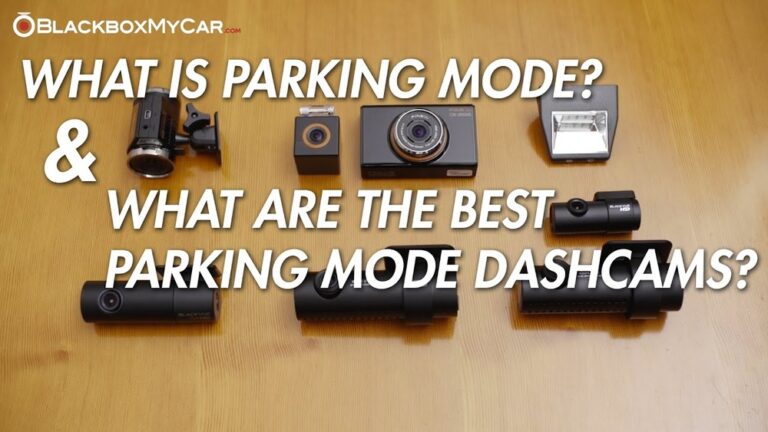
Many drivers now use dash cams to record trips for safety, proof after a crash, or simple peace of mind. One question I hear a lot is: Does a dash cam overwrite old footage automatically? Knowing how your dash cam handles storage helps you protect key clips and avoid losing evidence when it matters.
I dug into how dash cams manage files, how automatic overwriting (loop recording) works, and what you can do to keep important videos safe. Whether you just bought your first dash cam or you tweak settings for work, I’ll share practical tips and real-world experience to help you get reliable footage every time.
How Dash Cams Store Footage
Most dash cams record to a removable microSD card. When the car powers up, the camera starts recording. It usually splits video into short files—typically 1 to 5 minutes each. That makes playback and file management easier.
Card size sets how much you can keep. For example, a 32GB microSD typically stores about four to six hours of 1080p footage. Higher resolution, like 2K or 4K, uses much more space. I learned this the hard way on a long trip—4K filled the card three times faster than I expected.
A few dash cams include tiny built-in memory, but that’s rare and very limited. Removable cards are the norm because they let you upgrade, swap, and back up footage easily.
Storage Example: 32gb Vs 128gb
Quick comparison of common card sizes and typical use cases:
| Card Size | Approx. Recording Time (1080p) | Typical Use Case |
|---|---|---|
| 32GB | 4-6 hours | Daily commute, short trips |
| 64GB | 8-12 hours | Longer drives, road trips |
| 128GB | 16-24 hours | Professional drivers, extended travel |
Remember: if your camera records at 2K or 4K, those numbers shrink fast. In practice, pick a card with capacity that matches how long you want footage kept between downloads.
What Is Automatic Overwriting?
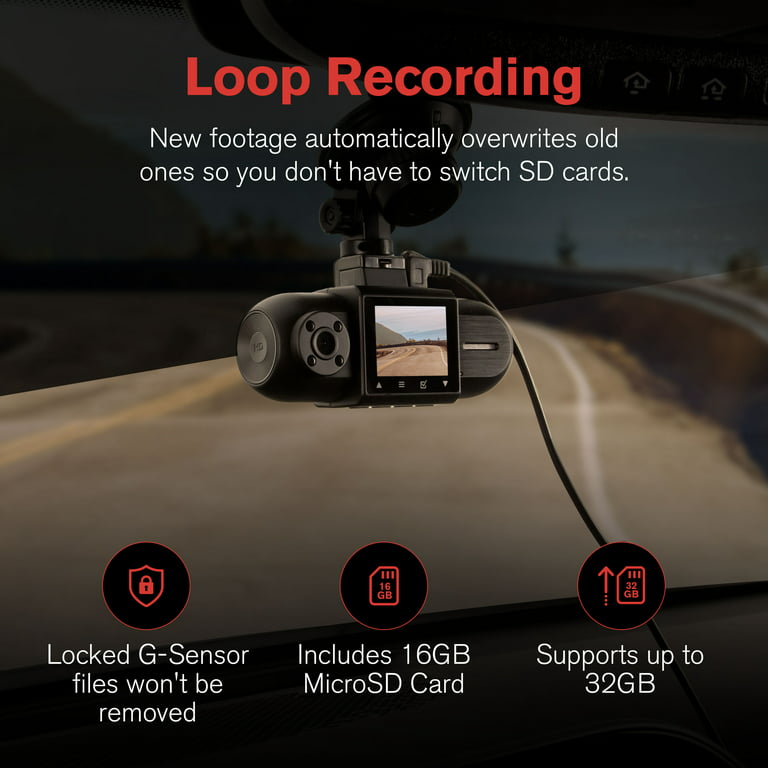
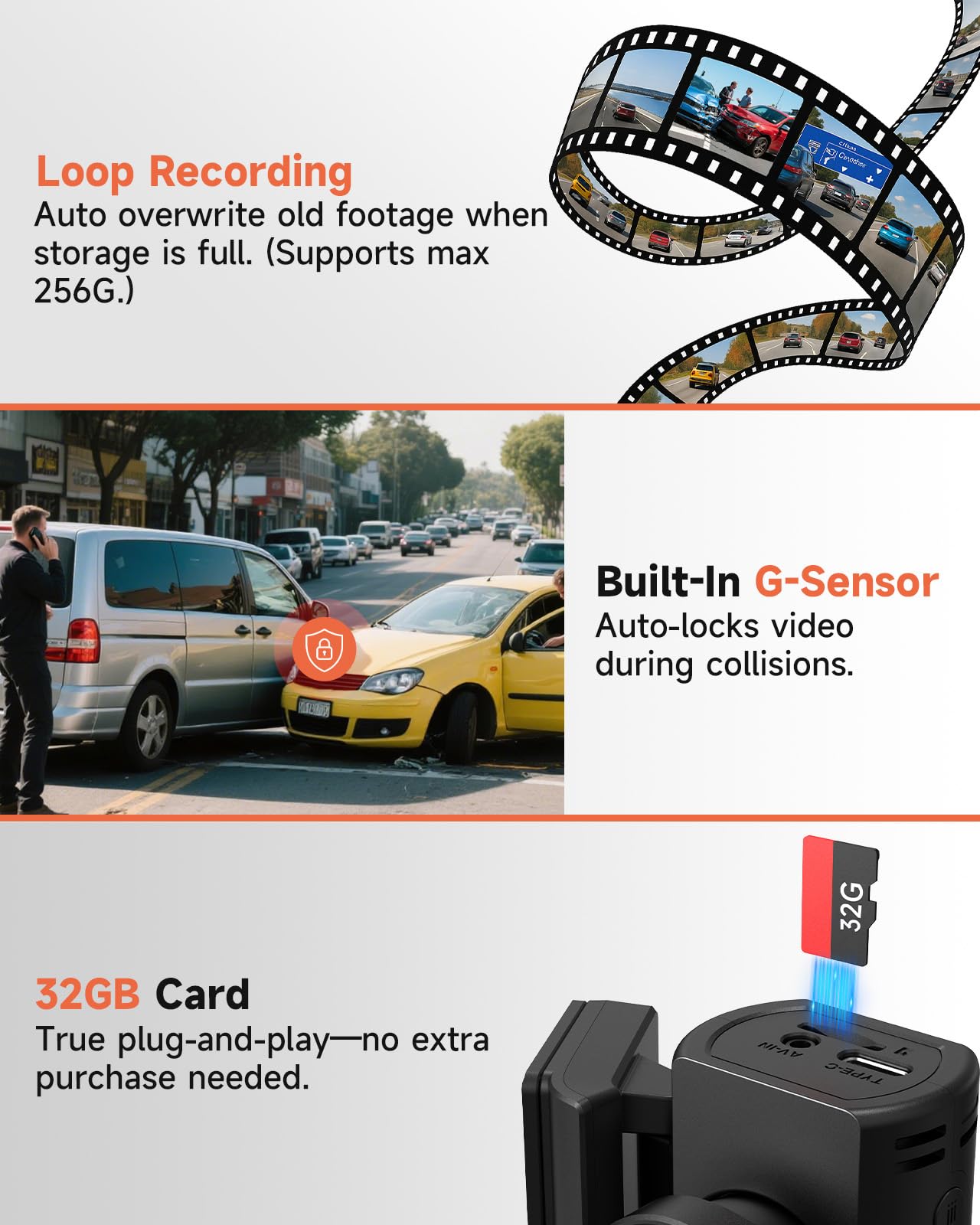
Automatic overwriting—also called loop recording—lets a dash cam reuse storage. When the card fills, the camera deletes the oldest files and writes new ones. This keeps the dash cam recording without you having to clear space.
Most dash cams come with loop recording enabled by default. That’s good for hands-off use. But it also means unprotected clips can be erased before you get a chance to save them.
Loop Recording Cycle
How the loop cycle works:
- Dash cam records short files in sequence.
- When the card is full, the oldest file gets deleted.
- New footage is written in that freed space.
- The camera keeps repeating this cycle while it records.
Loop recording is efficient and reliable. I always keep it on because stopping when the card fills is risky. Still, you must protect any clip you want to keep.
Why Do Dash Cams Overwrite Footage?
Dash cams overwrite old footage for a few practical reasons:
- Continuous recording: The camera must record non-stop, even on long drives.
- Limited storage: MicroSD cards have fixed capacity. Reuse is necessary.
- Hands-free operation: Drivers don’t want to manually manage files while on the road.
- Recent evidence: Overwriting ensures the newest footage is always available.
Manufacturers design dash cams to be simple. Looping storage is part of that simplicity. But it’s also the reason you need a plan to save important clips.
How To Prevent Important Files From Being Overwritten
Most dash cams let you protect files so loop recording won’t delete them. This is often called file locking or event recording. I treat locking as a habit: whenever something notable happens, I lock the clip right away.
You can lock files manually with a button. Many cameras also auto-lock when the built-in G-sensor detects an impact or a sudden maneuver. Locked files go into a protected folder and won’t be overwritten until you remove them or format the card.
Common Protection Features
- Manual file locking: Press a button to protect the current clip.
- Automatic G-sensor locking: Collision or heavy braking triggers a lock.
- Parking mode events: Motion or impact while parked saves and protects the clip.
Tip: after an accident or a hit-and-run, remove the card or transfer locked files. I once nearly lost a vital clip because I waited too long to back it up.
Types Of Dash Cam Storage Management
Dash cams use different storage methods. Knowing them helps you pick a model and set it up right.
Loop Recording (default Mode)
Loop recording is the default on most models. You pick file length—1, 3, or 5 minutes—and the camera writes those files in a loop until the card is full. Then it deletes the oldest ones.
Event Recording (protected Files)
Event recordings are separate from normal files. They’re triggered by manual input, the G-sensor, or parking mode. These files are usually stored in a protected folder and not overwritten during normal looping.
Continuous Vs Event-based Systems
Common modes you’ll see:
| Mode | Description | Overwriting Behavior |
|---|---|---|
| Continuous | Records all the time, overwrites oldest files | Automatic, except locked files |
| Event-Based | Records only when an event occurs (motion, impact) | Usually protected from overwrite |
Use continuous mode for daily driving. Switch to event-based for long parking periods or to save battery when parked.
Cloud Storage And Wi-fi Dash Cams
Some dash cams offer cloud backup and Wi‑Fi or LTE upload. With cloud backup, important clips can be copied off the card to remote storage. That reduces the risk of losing footage to overwriting or physical theft.
Note: most cameras still rely on local microSD storage first. Cloud features are common on higher-end models and often require a subscription.
Choosing The Right Memory Card For Your Dash Cam
The right microSD card improves recording time and reliability. I always use recommended cards and replace them on a schedule. Cheap cards fail faster under constant writing.
Key Factors To Consider
- Capacity: Pick a size that fits your driving habits. For most users, 64GB–128GB is a good balance.
- Speed rating: Choose Class 10 or UHS-I/UHS-III. Slow cards can drop frames or cause errors.
- Endurance: Dash cams write constantly. Use cards labeled Endurance or Industrial.
- Brand: Stick with SanDisk, Samsung, Kingston, or other reputable brands.
Comparison: Standard Vs Endurance Cards
| Card Type | Write Cycle Life | Best Use |
|---|---|---|
| Standard | Approx. 500 hours | Occasional use, short trips |
| High Endurance | 3000–10,000 hours | Daily use, professional drivers |
Using a standard card in a dash cam can cause corruption after heavy use. Endurance cards handle constant writes and reduce the risk of file errors.
Common Mistakes When Choosing Memory Cards
- Using cheap, unbranded cards (higher failure risk)
- Choosing too small a card (limited recording time)
- Ignoring speed rating (causes dropped frames)
- Not formatting the card in the camera regularly (increases errors)
Check your dash cam manual for recommended specs. I format my card in-camera every month to reduce glitches.
Credit: www.walmart.com
How To Manage Dash Cam Footage
Simple steps I use to keep footage safe and my camera healthy:
- Download important videos: After an incident, copy files to a computer or cloud drive.
- Format the card monthly: Format in-camera to clear file system errors.
- Review locked files: Periodically delete old protected clips you no longer need.
- Upgrade storage: Move to a larger card if you need more retention time.
- Backup critical footage: Use cloud backup or an external drive for evidence.
Many modern dash cams have smartphone apps for quick download and review. I use apps for quick checks, but always keep a separate backup for legal or insurance needs.
Real-world Examples: When Overwriting Matters
Here are a few real scenarios where overwriting affects outcomes:
Example 1: Long Road Trip
Say you take a 10-hour drive and use a 32GB card with about six hours of storage. After six hours, the camera starts deleting older clips. If an accident happens in hour nine, footage from the trip start may be gone. My rule: use larger cards for long trips or back up at stops.
Example 2: Parking Surveillance
In parking mode, motion or impact events can fill a card overnight. If these event clips aren’t protected or backed up, the camera will overwrite them later. I set my camera to only record significant motion events and review clips each morning.
Example 3: Professional Drivers
Taxi and rideshare drivers record 8–12 hours a day. Loop recording means the oldest footage is removed daily. For long-term storage, use high-capacity, high-endurance cards and a daily backup routine.
Dash Cam Settings That Affect Overwriting
Control these key settings to manage how long your clips stick around:
File Length
Choose file length (1, 3, or 5 minutes). Short files make it easier to find moments quickly. Longer files reduce file counts but can make editing harder if you only need a short clip.
Loop Recording On/off
Some cameras let you turn loop recording off. That stops recording when the card is full. I don’t recommend turning loop off unless you have a plan to manage storage manually—otherwise you risk missing critical footage.
Parking Mode
Parking mode records when motion or impact is detected while your car is off. Event files are usually protected, but some cameras may overwrite them if the card fills. Set parking sensitivity carefully and review files often.
Audio Recording
Audio adds extra data. If you don’t need sound, turn it off to save space and extend how long footage is retained.
Dash Cam Brands And Their Overwriting Features
Popular brands handle overwriting and protection differently. Here’s a quick look:
- Garmin: Loop recording always on; locked files protected.
- Nextbase: Emergency file protection and cloud backup on some models.
- BlackVue: Cloud upload support and manual file locking.
- Viofo: Recommends high-endurance cards; flexible loop settings.
- Thinkware: Advanced parking mode and reliable event protection.
Always read your camera’s manual. Many brands provide smartphone apps or cloud services that make file management easier.
Understanding G-sensor And Event Protection
The G-sensor detects sudden motion—like a crash or hard brake—and auto-locks the current file. This prevents the clip from being overwritten. Adjust sensitivity so it captures real incidents without locking on every pothole.
Tip: Set G-sensor to medium sensitivity for daily driving. If you drive on rough roads, lower it to avoid excessive locked files.
How Long Does Footage Stay Before Being Overwritten?
Retention time depends on card size, video quality, and how much you drive. A 64GB card at 1080p might hold 8–12 hours. If you drive two hours daily, that lasts about five to six days. If you drive eight hours daily, footage may overwrite every 24 hours.
Not obvious but important: locked files still use space. If you lock too many clips, your dash cam may run out of writable space and stop recording new footage.
Risks Of Relying On Automatic Overwriting
Loop recording is convenient, but keep these risks in mind:
- Loss of evidence: If you don’t lock or back up files, they can be gone before you act.
- Card failure: Low-quality or worn cards can corrupt and lose many files at once.
- Too many locked files: Over-protection can fill the card and block new recordings.
Balance protection with routine maintenance. I check my card weekly if I’m driving a lot.
Practical Tips To Avoid Losing Footage
- Use high-endurance cards: They last longer and resist corruption.
- Lock important clips immediately: Don’t wait until you get home.
- Download files regularly: Back up after incidents or long drives.
- Check card health monthly: Replace any card that shows errors.
- Watch dash cam warnings: If it beeps or flashes, check storage right away.
Advanced tip: Some cameras let you set a minimum free space threshold. When free space drops below that level, the camera stops overwriting. Use this to protect clips until you can back them up.
Credit: www.amazon.com
Are There Dash Cams That Don’t Overwrite Footage?
A few specialty dash cams do not overwrite. They stop recording when the card fills and alert the user. These are mostly used in law enforcement or fleet vehicles where every file must be preserved.
For most consumer cameras, loop recording is standard. If you need to keep everything, you’ll need a manual backup workflow or cloud-enabled model with reliable uploads.
Comparing Dash Cam Overwriting Vs Home Security Cameras
How dash cams and security cameras differ in storage:
- Dash cams focus on recent footage and overwrite old files to keep recording continuously.
- Home security cameras often use larger hard drives or NVRs and can keep footage for weeks or months.
- Dash cam files are short clips for quick review; security camera systems may store longer continuous footage.
- Both systems overwrite when storage is full, but the retention window differs based on capacity and use case.
The main reason for this difference is portability. Dash cams need small, replaceable storage and simple, automated behavior.

Credit: www.amazon.com
How To Retrieve Overwritten Footage
Once footage is overwritten, it’s usually gone. Dash cams delete old files to make space. Recovery is possible only in rare cases with specialized recovery tools, and success is low. It depends on the card type and how fast you act.
Pro tip: If you think a clip was overwritten, stop using the card immediately and try recovery software on a copy of the card image. Prevention—locking and backing up—is far more reliable than recovery.
Why Dash Cams Don’t Use Infinite Storage
Why aren’t dash cams built with endless storage? It comes down to cost, size, and practicality. MicroSD cards are cheap, small, and easy to swap. Adding huge internal storage makes cameras bigger and pricier.
Cloud storage can give the effect of “infinite” backup, but it often needs Wi‑Fi or cellular service and may carry subscription fees. For many drivers, that adds more cost and complexity than they want.
Legal Considerations For Dash Cam Footage
Dash cam video is often used as evidence. Keep these legal points in mind:
- If you don’t lock files after an incident, footage may be overwritten and lost as evidence.
- Some regions require you to retain evidence for a certain period after a crash.
- Insurance companies may request dash cam footage and specific settings.
Not obvious: For legal cases I’ve handled or advised on, having a backed-up copy of the locked file is crucial. Don’t rely on the dash cam alone as your only copy.
Troubleshooting Dash Cam Storage Issues
If your dash cam shows errors or stops recording, try these steps:
- Check card compatibility: Use cards the manufacturer recommends.
- Format regularly: Format the card in-camera to clear file-system issues.
- Update firmware: Install the latest software to fix bugs.
- Reset settings: Restore defaults if overwriting behavior is wrong.
- Replace old cards: Cards wear out and cause corruption.
If your camera shows error codes or warning lights, consult the manual or support site. I keep a spare high-endurance card in the glovebox for quick swaps.
The Future Of Dash Cam Storage
Dash cam storage is improving quickly. Expect:
- More automatic cloud uploads for off-site backup
- Smarter file management that prioritizes and preserves critical moments
- Real-time alerts when storage is low or a clip is at risk of being overwritten
For now, good settings and routine backups are the best defense against losing important footage.
FAQs Of Does Dash Cam Overwrite Old Footage Automatically
Does Every Dash Cam Overwrite Old Footage Automatically?
Most dash cams use loop recording to overwrite old footage when the card is full. Some specialty models let you disable overwriting. Check your dash cam’s settings and the manual to be sure.
What Happens If I Lock Too Many Files?
Locked files are safe from overwrite, but they still use space. Lock too many and you may run out of free space for new recordings. Review and clear old locked files regularly.
Can I Recover Overwritten Footage?
Overwritten footage is usually gone. Recovery tools can help in rare cases, but chances are low. The best practice is to lock and back up important files promptly.
Should I Use A High-endurance Card In My Dash Cam?
Yes. High-endurance cards are made for constant writing and last longer. For daily drivers or professional use, an endurance card is worth the investment.
How Do I Know If My Dash Cam Has Overwritten Important Footage?
Check the camera’s folders. If expected files are missing, they may have been overwritten. Some cameras warn when storage is low. If in doubt, back up or lock important clips immediately.
Dash cams are powerful tools for safety and evidence. Automatic overwriting keeps them recording without interruption. By understanding how loop recording works, using the right microSD card, and backing up or locking important files, you can avoid losing critical footage. For more technical background on dash cams, see Wikipedia.

I am Julian Drive, an automotive enthusiast and repair expert with over 7 years of hands-on experience in vehicle maintenance. At Carora Hub, I simplify complex car issues into easy-to-follow DIY guides to help drivers stay safe and save on repair costs.