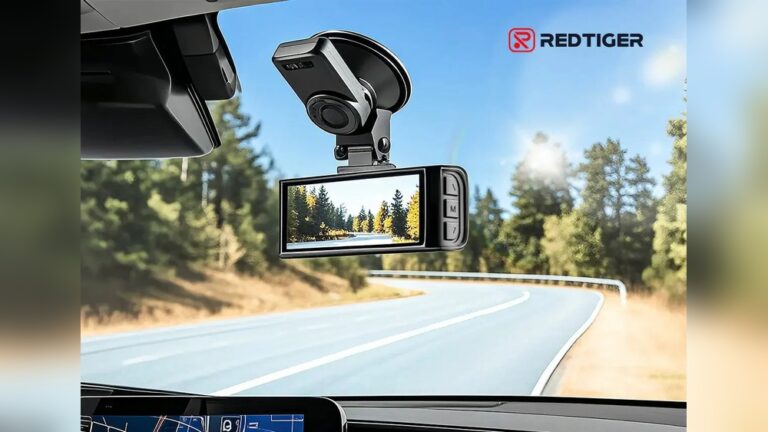
Have you ever relied on your dash cam to capture a crucial moment, only to find it’s not detecting your SD card? It’s frustrating when your device won’t save important footage, leaving you unsure about what went wrong.
You’re not alone — this problem happens more often than people think. Understanding why your dash cam doesn’t recognize the SD card can save you time, stress, and money. In this guide I’ll walk you through the most common causes, quick fixes, and steps I use when troubleshooting my own dash cams. These steps are practical and easy to try. They will get your camera recording again fast.
Keep reading to make sure your dash cam works perfectly every time you need it.
Credit: www.blackboxmycar.com
Common Reasons For Sd Card Detection Failure
SD card detection failure is a common issue in dash cams. It stops the device from saving videos properly. Understanding why this happens helps fix the problem fast. Several factors cause the dash cam not to detect the SD card. These include compatibility, damage, connection, and software problems. Below I explain each cause and what I do to fix them.
Incompatible Sd Card Types
Not all SD cards work with every dash cam. Some cameras only accept specific sizes or speeds. Using an SD card that is too large or too slow may cause detection failure. Check the dash cam’s manual for the recommended card type. Using the right card avoids many issues.
Quick tips I follow:
- Match the card type (microSD vs. full-size) to the camera’s slot.
- Follow the max capacity listed in the manual (32GB, 64GB, 128GB, etc.).
- Use cards rated Class 10 or UHS-I for continuous video recording.
Corrupted Or Damaged Sd Cards
An SD card can get corrupted after repeated use or if you remove it suddenly while the camera is writing. Physical damage like cracks or bent contacts also stops detection. A corrupted card may not show files or format properly. Testing the card on another device helps find if it is damaged. Replace the card if it is faulty.
Signs of a bad card I look for:
- Computer won’t read the card.
- Files are missing or cannot be opened.
- Camera reports “Card error” or “No SD card”.
Improper Insertion Or Connection Issues
Incorrectly placing the SD card in the slot blocks detection. The card must be fully inserted with the contacts facing the right way. Dust or debris in the slot can also cause poor contact. Clean the slot gently and reinsert the card. Make sure it clicks into place firmly.
My routine when a camera won’t read a card:
- Power off the dash cam.
- Remove the card and inspect the contacts.
- Blow out the slot with compressed air or use a soft brush.
- Reinsert the card until it clicks.
Firmware Or Software Glitches
Dash cam software controls how the device reads the SD card. Bugs or outdated firmware may cause detection problems. Updating the dash cam to the latest firmware can fix these glitches. Restarting the camera after updates often improves performance. Regular updates keep the device running smoothly.
Note: before updating firmware, back up any important files on the card to a computer. Firmware installs can reset settings or affect stored files.
Checking Sd Card Compatibility
Checking SD card compatibility is the first step to fix dash cam issues. Not all SD cards work well with every dash cam. The wrong card type can cause the camera not to detect it. Understanding which cards your dash cam supports helps avoid this problem. It saves time and prevents data loss.
Supported Formats And Capacities
Dash cams support specific SD card formats. Most accept microSD cards, but some require full-size SD cards. The file system format matters too. Common formats include FAT32 and exFAT. Using a card with the wrong format can stop detection.
Capacity limits also affect compatibility. Many dash cams support cards up to 32GB or 64GB. Some models handle cards as large as 128GB or more. Using a card beyond the recommended size can cause errors.
Class And Speed Requirements
Speed class affects how fast the card writes data. Dash cams need cards with a minimum class rating for smooth recording. Class 10 or UHS-I cards are common requirements. Lower-speed cards may fail to save video properly.
Choosing a card with the right speed class ensures stable performance. It prevents video lag or file corruption. Always check the dash cam manual for exact speed requirements.
Inspecting And Testing The Sd Card
Checking your SD card is a key step when your dash cam does not detect it. Problems often come from the card itself, not the camera. A careful look and some tests can show if the card works or if it has issues.
Start by inspecting the card closely. Sometimes damage is visible. Next, test the card on a computer. This shows if the card can be read or written to. Lastly, proper formatting can fix many problems. A wrong format may stop the dash cam from recognizing the card.
Visual Damage And Wear
Look for cracks, scratches, or dirt on the card’s surface. Check the metal contacts for rust or dirt. Dirty contacts can stop the card from connecting properly. Use a soft cloth to clean the contacts gently. Avoid using liquids or sharp objects. Physical damage can make the card unusable.
Using A Computer To Verify Functionality
Insert the SD card into a computer’s card reader. See if the computer detects the card. Try opening files stored on the card. Copy some files to and from the card. This test shows if the card can hold and transfer data. If the computer does not detect the card, the card may be faulty.
Formatting The Sd Card Properly
Use the computer to format the SD card. Choose the FAT32 or exFAT format, depending on your dash cam’s manual. Do not use quick format. A full format checks for bad sectors and fixes them. Formatting erases all data on the card. After formatting, try the card in the dash cam again.
How to Format FAT32 on Windows and macOS
Many dash cams expect FAT32. Newer cameras accept exFAT. If your card is 64GB or larger and your camera needs FAT32, you may need a tool to format it.
On Windows (simple steps):
- Insert the card into a reader.
- Open File Explorer and right-click the drive.
- Choose Format → File system → FAT32 (or exFAT if required).
- Uncheck Quick Format to check for bad sectors.
- Click Start and wait.
On macOS (Disk Utility):
- Open Disk Utility → select the card.
- Click Erase → choose MS-DOS (FAT) for FAT32 or ExFAT.
- Click Erase and wait.
If OS tools don’t show FAT32 for larger cards, use a dedicated formatter like the SD Association’s “Formatter” app or a third-party FAT32 utility. These tools are safe and reliable.
Resolving Connection Problems
Connection problems often cause a dash cam to not detect an SD card. Fixing these issues can help your device work properly. Simple steps can solve most connection problems quickly. This section explains easy ways to resolve connection issues with your dash cam and SD card.
Cleaning Sd Card And Slot
Dust or dirt can block the connection between the SD card and dash cam. Gently clean the SD card with a soft cloth. Avoid using water or chemicals that can damage it. Use a dry, soft brush or compressed air to clean the SD card slot. Keeping both parts clean helps the dash cam detect the SD card.
Reinserting The Sd Card Correctly
Incorrect insertion can prevent the dash cam from reading the SD card. Check the card’s direction and push it in fully. A loose or half-inserted card may not connect. Make sure you hear a click or feel a slight resistance when inserting. Proper insertion ensures a good connection.
Trying A Different Sd Card Slot
Some dash cams have more than one SD card slot. Trying a different slot can show if the problem is with the slot itself. If the card works in another slot, the first slot might be damaged. Using a different slot can restore the dash cam’s ability to detect the SD card.
Updating Dash Cam Firmware
Updating your dash cam firmware can fix many issues. One common problem is the dash cam not detecting the SD card. Firmware updates improve how the device reads and writes data. They also fix bugs and improve compatibility with newer SD cards.
Many dash cams receive updates from the manufacturer. These updates make sure the device works well with different types of SD cards. Keeping your firmware current helps prevent detection problems and improves overall performance.
Checking For Firmware Updates
Start by visiting the dash cam maker’s official website. Look for the support or downloads section. Enter your dash cam model number to find available updates. Check the update notes to see if SD card issues are mentioned.
Some dash cams allow checking updates directly in the device settings. Connect your dash cam to Wi‑Fi if possible. Navigate to the firmware update menu and check for new versions. This method is faster and easier.
Step-by-step Firmware Update Process
Download the latest firmware file to your computer. Make sure the file matches your dash cam model exactly. Extract the file if it is in a compressed format like ZIP.
Copy the firmware file to an empty, formatted SD card. Insert this SD card into your dash cam. Power on the device and follow the on-screen instructions to start the update. Do not turn off the dash cam during the update.
Once the update finishes, the dash cam will restart automatically. Check the firmware version in the settings to confirm the update. Test the device with your SD card to see if it is detected now.
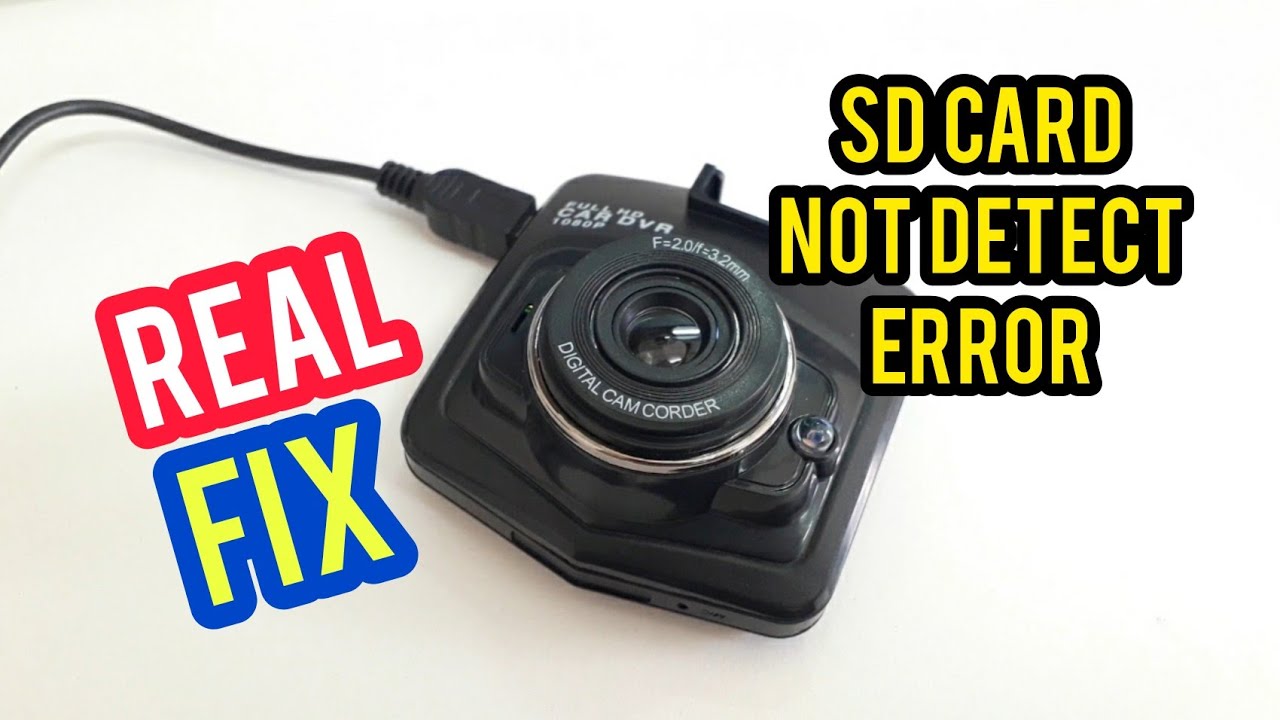
Credit: www.youtube.com
Performing A Factory Reset On Dash Cam
Performing a factory reset on your dash cam can fix many problems. One common issue is when the dash cam does not detect the SD card. A factory reset restores the dash cam to its original settings. This can clear errors and glitches that block the SD card from working. It is a simple step that often solves the problem without needing extra tools or repairs.
When To Reset
Reset the dash cam if it does not recognize the SD card. Also reset if the device freezes or acts slow. If files on the SD card do not save properly, try a reset. Resetting helps when other fixes do not work. Avoid resetting too often to keep settings and files safe.
How To Reset
Find the reset button on your dash cam. It is often a small hole that needs a pin. Hold the reset button for about 10 seconds. The screen may flash or turn off to show reset started. Let the dash cam restart on its own. Check if the SD card is now detected after reset.
Preventive Tips To Avoid Detection Issues
Preventing SD card detection issues in your dash cam saves time and frustration. Simple steps help keep your device running smoothly. Follow these tips to avoid common problems with SD cards.
Choosing The Right Sd Card
Pick an SD card that matches your dash cam’s specifications. Use cards labeled as compatible or recommended by the manufacturer. Select cards with enough storage space for your recordings. Avoid cheap or low-quality cards as they often cause errors.
Recommended card traits I use:
- Brand-name cards (SanDisk, Samsung, Lexar, Kingston).
- Class 10 / UHS-I or higher.
- Endurance or “dash cam / surveillance” labeled cards for constant overwrite.
Regular Maintenance And Formatting
Clean the SD card slot and card contacts regularly with a soft cloth. Format your SD card inside the dash cam every few weeks. Formatting clears old data and fixes minor errors. Avoid formatting on a computer unless your dash cam supports it.
Safe Removal Practices
Turn off your dash cam before removing the SD card. Removing the card while the device runs can cause damage or data corruption. Store the card in a protective case when not in use. Avoid bending or exposing the card to extreme temperatures.
When To Seek Professional Help
Sometimes, the dash cam cannot detect the SD card despite trying all fixes. This situation calls for professional help. Experts have the tools and knowledge to find the exact problem. They avoid further damage to the device or data loss. Knowing when to seek help saves time and stress.
Persistent Detection Problems
If the dash cam keeps showing “No SD card,” it may have a serious issue. Cleaning the card slot or changing the card might not work. Professionals can test the card and the dash cam together. They check for hidden faults that regular users cannot see. Persistent problems often need expert diagnosis to fix.
Hardware Repair Or Replacement Options
Sometimes, the problem lies inside the dash cam’s hardware. The SD card reader could be broken or loose. Professionals can open the device safely and repair the parts. They can also tell if replacing the dash cam is better. This choice depends on the cost and damage extent. A quick repair or replacement restores full function.

Credit: wolfbox.com
Frequently Asked Questions Why Does Dash Cam Not Detect SD Card
Why Does My Dash Cam Not Recognize The Sd Card?
Your dash cam may not recognize the SD card if it is incompatible, corrupted, or improperly formatted. Always check the card’s specifications and format it using the dash cam’s settings for proper detection.
How To Fix Dash Cam Sd Card Detection Issues?
To fix detection issues, try formatting the SD card in the dash cam, use a compatible card, or replace a faulty one. Updating the dash cam firmware may also help resolve recognition problems.
What Sd Card Type Works Best For Dash Cams?
Dash cams usually require microSD cards with high speed, such as Class 10 or UHS-I. Using recommended brands and capacities ensures reliable performance and proper detection by the dash cam.
Can A Damaged Sd Card Cause Dash Cam Errors?
Yes, a damaged or corrupted SD card can prevent the dash cam from detecting it. Regularly check and replace faulty cards to avoid recording interruptions and data loss.
Quick Troubleshooting Checklist (What I Do First)
- Turn off the dash cam and remove the card.
- Inspect the card for damage and clean the contacts.
- Test the card on a computer. Copy a file to it.
- Format the card using the camera’s format option or use FAT32/exFAT on a computer.
- Try a different, known-good card (preferably Class 10 or UHS-I).
- Update camera firmware and reboot the device.
- If nothing works, try a factory reset or seek repair help.
Recommended SD Cards and Why I Trust Them
For dash cams I recommend endurance or surveillance-grade microSD cards. They handle constant writing better than general-use cards. Examples I trust are:
- SanDisk High Endurance
- Samsung PRO Endurance
- Lexar High Endurance
These cards are built for repeated overwrite cycles. They reduce file errors and last longer in hot cabins and 24/7 use.
Recovering Files from a Corrupted SD Card
If your card is readable on a computer but files are missing, try a recovery tool before formatting. Tools I have used successfully include Recuva, PhotoRec, and Disk Drill. Work on a copy of the card image when possible. If recovery fails, stop using the card to avoid further damage.
Conclusion About Dash Cam Not Detect SD Card
A dash cam not detecting an SD card can cause frustration. Often, the problem comes from an incompatible or damaged card. Checking the card’s format and slot cleanliness helps a lot. Using the right type and capacity of the SD card matters too.
Regularly updating the dash cam’s software can fix detection issues. Simple steps can solve most problems quickly. Keep your dash cam ready to record every drive safely.

I am Julian Drive, an automotive enthusiast and repair expert with over 7 years of hands-on experience in vehicle maintenance. At Carora Hub, I simplify complex car issues into easy-to-follow DIY guides to help drivers stay safe and save on repair costs.