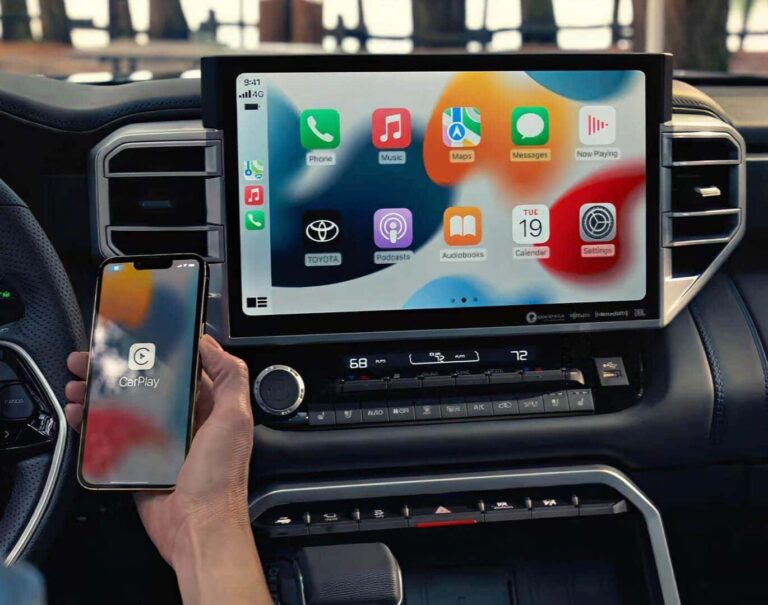
To connect Bluetooth in a Toyota 4Runner, put the truck in Park, turn the ignition to ACC or ON, and open the phone menu on the touchscreen. Pairing usually takes about 30 to 60 seconds. On most 2014 and newer 4Runners, tap Settings, then Bluetooth, then Add New Device.
What you need before you pair
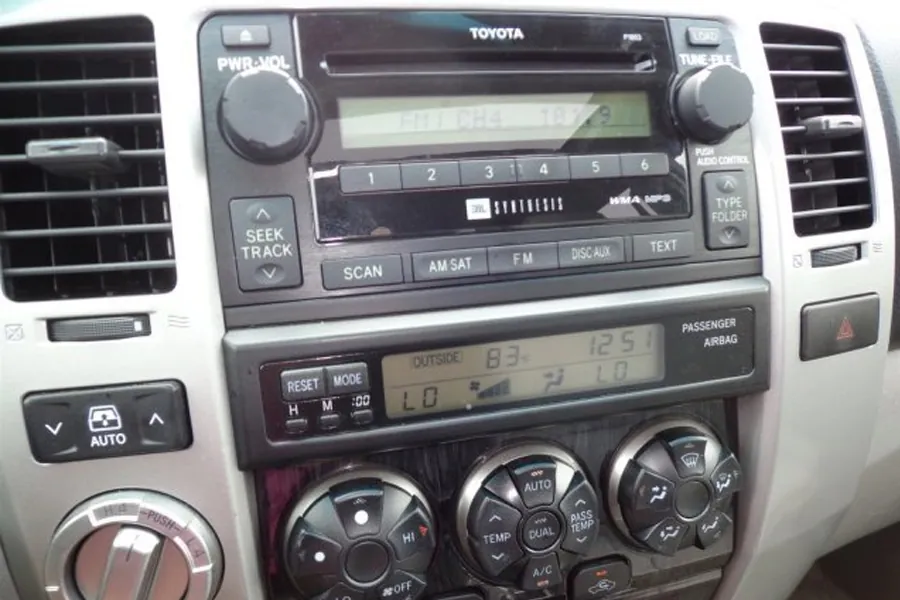
Get everything ready first, so you don’t have to stop halfway and start over. Here’s the short list:
- Your phone, charged above about 20%, with Bluetooth switched on and the screen unlocked.
- The 4Runner’s key or fob, so you can hold the ignition in ACC or ON without the engine running.
- The 4Runner in Park, with the parking brake set and the head unit fully awake.
- Your phone’s Bluetooth name, the exact one you’ll see on the screen — not your contact name.
- Your phone’s passkey or PIN, if the phone asks for one. Most phones use 0000 or 1234, but check your phone’s own settings page.
- The Toyota owner’s manual for your model year, since the menu layout shifts between the 5th-generation years.
- A few minutes with no calls coming in, because an incoming call can interrupt pairing.
A USB cable works as a backup for wired CarPlay or Android Auto, but it won’t replace a Bluetooth pairing. If your head unit has been swapped for an aftermarket one, follow that brand’s own pairing steps instead.
How to connect Bluetooth step by step
- Park the 4Runner and set the brake. Turn the ignition to ACC or ON. Don’t start the engine — you don’t need it, and the noise makes voice prompts harder to hear.
- Wake the head unit. Tap the screen once. If it’s frozen, hold the power or volume knob for about 10 seconds to force a restart, then wait for the home screen.
- Open the phone menu on the touchscreen. Press the Phone button, or tap Settings, then Bluetooth. On older units, look for Setup, then Bluetooth.
- Choose “Add New Device” or “Pair Phone.” The head unit starts searching and shows a list of nearby phones. This search usually takes under 30 seconds.
- Turn on Bluetooth on your phone and open its Bluetooth list. On iPhone, go to Settings, then Bluetooth. On Android, go to Settings, then Connected devices, then Pair new device.
Tip: Keep the phone within about 3 feet of the dash during pairing. Distance isn’t the problem — a weak signal is.
- Tap your 4Runner’s name on the phone’s list. It usually shows as “Toyota 4Runner” or a short code like “TOYOTA.” If two names appear, pick the one with “Audio” or “Handsfree” beside it.
- Confirm the code on both screens. The head unit and phone show the same 6-digit number. Tap Pair or Yes on both. If your phone asks for a PIN instead, try 0000 or 1234.
- Allow contacts and media access when the phone asks. Say yes to both. If you skip this, calls may work but music won’t, and you’ll have to pair again.
Careful: Don’t tap “Forget This Device” on your phone to fix a failed pairing unless you also delete the phone from the head unit. Half-deleting leaves a ghost entry that blocks the next attempt.
- Test it. Make a short call and play one song. If both work, you’re done. If not, delete the phone from both sides and repeat from step 3.
If you’re pairing a phone you don’t own, get the owner’s consent first — saved contacts and call history stay on the head unit until someone clears them.
How pairing changes with your situation
The time and effort depend on your model year, your phone, and how many phones are already saved. Here’s how the common cases compare:
| Your situation | Time it takes | What’s different | What to watch |
|---|---|---|---|
| First phone on a new 4Runner | 30–60 seconds | Empty list, no conflicts | Accept both contacts and media prompts |
| Second or third phone | 1–2 minutes | You must pick which phone is primary | Only one phone connects for calls at a time |
| Older 4Runner (pre-2014) | 2–4 minutes | Menu is buried under Setup | Voice prompts guide you; listen closely |
| Phone with a recent OS update | 1–3 minutes | Pairing may drop once, then work | Restart the phone if the first try fails |
| Aftermarket head unit | 1–2 minutes | Toyota steps don’t apply | Use the head unit brand’s own guide |
| Rental or borrowed 4Runner | 1–2 minutes | Previous phones still saved | Delete your phone before you return it |
Start with one phone and get it working before you add a second. Adding phones one at a time is safer than loading several at once, because a bad entry is much harder to spot in a crowded list.
How to tell the pairing worked
A good pairing is quiet and boring. Calls connect in a second or two, the other person hears you clearly, and music starts the moment you press play. The screen shows your phone’s name and a signal or battery icon. You don’t touch anything after the first setup.
A poor pairing looks different. Callers say you sound far away or robotic. Music plays but skips. The phone reconnects every time you start the truck, or never does. Sometimes the head unit shows your phone as connected while audio still comes out of the phone speaker.
Most of these problems come from one thing: the phone and head unit saved each other, but the media profile didn’t finish. That’s why the “allow media access” prompt matters. To prevent it, accept every permission prompt, pair only one phone at a time, and keep the phone near the dash until the first call connects.
If a pairing keeps dropping after all that, the issue is usually the phone’s software, not the truck. Check your phone maker’s support page for known Bluetooth issues on your model.
The rules and what to do after
Toyota’s own guidance, published in the 4Runner owner’s manual for your model year, is the standard here. Bluetooth itself is governed by the Bluetooth SIG, and pairing codes are a security step, not a formality.
After pairing, delete old phones from the head unit list, and remove the 4Runner from any phone you’ve sold or returned. Save your phone as the primary device if the truck supports it. On a rental or shared vehicle, delete your phone before you hand back the keys — your contacts stay on that head unit until someone removes them.
The pairing lasts until you delete it, reset the head unit, or update your phone in a way that breaks the saved profile. If that happens, the fix is a fresh pair, not a repair.
Other ways to get your phone connected
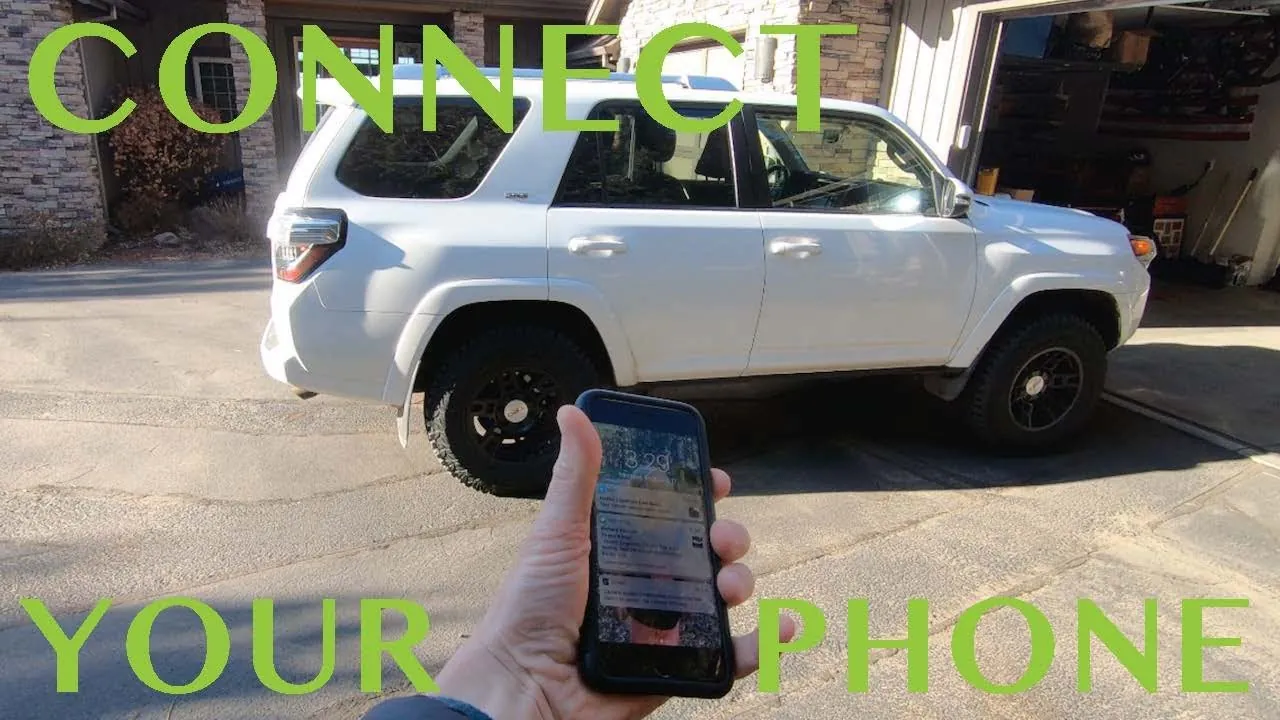
Bluetooth isn’t the only route, and for some drivers it isn’t the best one.
Wired USB connection
Plug your phone into the USB port with a data cable, not a charge-only cable. This gives you CarPlay or Android Auto on supported years, with steadier audio and charging. It takes about 10 seconds to connect, but you lose the wireless freedom.
Voice command pairing
Press the voice button on the steering wheel and say “Pair phone.” It’s slower, but useful when the touchscreen is hard to reach.
Dealer or Toyota support help
If the head unit won’t enter pairing mode, a Toyota dealer can check the system software. Go this route only when two phones both fail on the same truck.
Related guides
FAQs About How to Connect Bluetooth in Toyota 4Runner
How long does it take to connect Bluetooth in a Toyota 4Runner?
About 30 to 60 seconds for a first pairing on a 2014 or newer model, assuming the phone is unlocked and near the dash. Older models and phones with a recent software update can take 2 to 4 minutes, because the menu sits deeper and the first attempt sometimes fails.
Why won’t my Toyota 4Runner find my phone?
The head unit only sees phones that are in pairing mode with Bluetooth on and the screen unlocked. If your phone is already connected to another device, like earbuds or a smartwatch, it may not show up. Turn that other device off, then search again.
Can I connect more than one phone at a time?
Yes, you can save several phones, but only one handles calls at a time. Most 4Runner head units let you set a primary phone for calls and a second one for media. If two phones are in the truck, the primary one wins.
Is it safe to pair my phone while driving?
No. Pairing pulls your eyes and hands off the road for a minute or more. Do it in Park before you move. If you must connect mid-trip, pull over safely first no pairing step is worth a crash.
What happens if I skip the contacts permission?
Calls still work, but the head unit won’t show caller names, and you can’t dial from the screen. Music may also fail if you skip the media prompt. You’ll need to delete the pairing and start again to fix it.
How do I remove my phone from a rental 4Runner?
Open the head unit’s Bluetooth menu, find your phone in the saved list, and tap Delete or Forget. Then go to your phone’s Bluetooth settings and forget the 4Runner. Do both leaving one side saved keeps a ghost entry that can cause problems later.
How often do I need to pair again?
Normally, never the pairing stays saved until you delete it or reset the head unit. A phone software update or a battery disconnect can wipe it. If it drops often, the phone is usually the cause, not the truck.
Conclusion
Pairing your phone to a 4Runner is a one-time job that takes less than a minute when the truck is parked and the phone is ready. Do it once, accept every prompt, and the connection handles itself from then on.

I am Julian Drive, an automotive enthusiast and repair expert with over 7 years of hands-on experience in vehicle maintenance. At Carora Hub, I simplify complex car issues into easy-to-follow DIY guides to help drivers stay safe and save on repair costs.