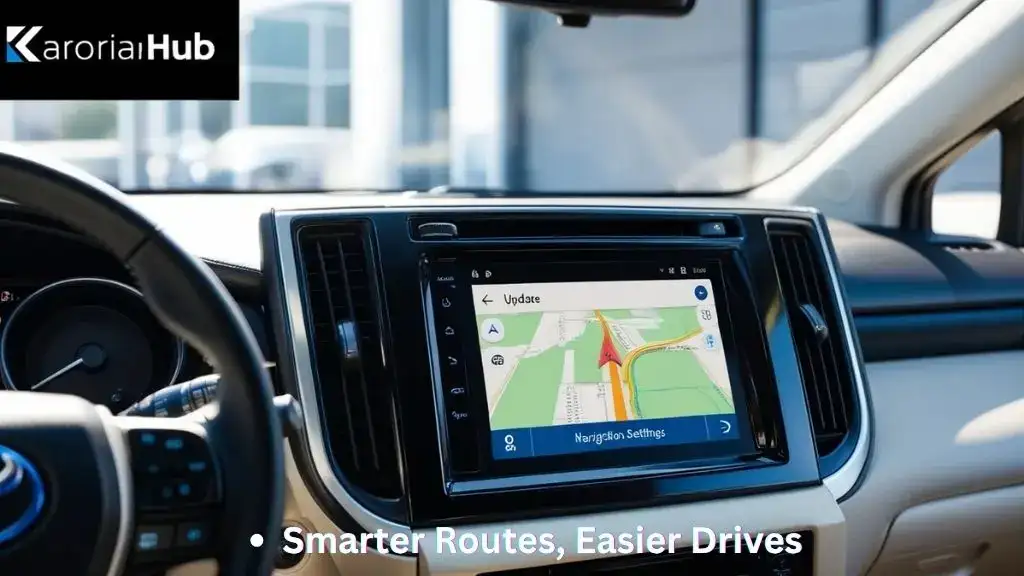
Is your Toyota Prius navigation system showing outdated maps or missing new roads? Keeping your navigation system up to date is key to reaching your destinations smoothly and avoiding unnecessary detours.
If you’ve ever felt frustrated by wrong directions or slow updates, this guide is made just for you. In the next few minutes, you’ll learn simple, step-by-step instructions to update your Prius navigation system quickly and confidently. Ready to make your drives easier and stress-free?
Let’s get started!
Check Your Prius Model And Navigation Version
Checking your Toyota Prius model and navigation version is the first step in updating your system. Different Prius models use different navigation systems. Knowing your exact model and system version helps find the correct update files.
This step avoids confusion and ensures your navigation update works smoothly. It saves time and prevents errors during the update process.
Identify Your Prius Model Year
Look at your vehicle registration or owner’s manual to find the model year. The model year affects which navigation system your Prius has. Older models may have outdated systems requiring specific updates.
Check Your Navigation System Version
Turn on your Prius and access the navigation menu. Find the “Settings” or “About” section. Your system version number appears here. Write down this number for reference during the update.
Locate Your Vehicle Identification Number (vin)
The VIN helps confirm your Prius model details. Find the VIN on the dashboard or driver’s side door frame. Use it on Toyota’s website or update tool to verify compatibility.

Credit: www.amazon.com
Gather Required Tools And Materials
Gathering the right tools and materials is the first step to update your Toyota Prius navigation system. Having everything ready makes the process smooth and fast. Missing a tool can cause delays or errors. This section lists all essentials to prepare before starting the update.
USB Flash Drive
A USB flash drive stores the update files. Choose one with at least 8GB free space. The drive must be formatted to FAT32 for compatibility. Avoid using drives with important data. The update process will erase all files on the drive.
Internet Connection
A stable internet connection is needed to download the update. Use a Wi-Fi network for faster and more reliable downloads. A slow or unstable connection may cause file corruption. Check your connection speed before starting.
Toyota Entune Account
Create or log in to your Toyota Entune account. This account provides access to official navigation updates. Registration requires your vehicle’s VIN and personal details. Keep your login information handy for quick access.
Computer Or Laptop
You need a computer or laptop to download files. It should have a USB port to connect the flash drive. Both Windows and Mac systems work fine. Make sure the device has enough battery or is plugged in.
Vehicle Owner’s Manual
Keep your Prius owner’s manual nearby. It contains important instructions specific to your model. The manual helps understand system settings and update steps. Refer to it if you face any confusion during the update.
This Guide May Help You More: How to update Toyota Sienna navigation system
Access Toyota’s Navigation Update Website
Accessing Toyota’s navigation update website is the first step to keep your Prius maps current. This site offers all tools needed for smooth updates.
Updates improve route accuracy and add new points of interest. The website is easy to use and guides you through each step.
Find The Official Toyota Navigation Update Page
Start by visiting the official Toyota website. Look for the navigation update section under “Owners” or “Support.”
Create Or Log In To Your Toyota Account
Sign in using your Toyota account. New users must create one with a valid email address.
Enter Vehicle Information
Provide your Prius details such as model year and VIN. This ensures you get the correct updates.
Download The Update Tool
Download the navigation update software to your computer. It helps transfer updates to your vehicle.
Connect USB Or SD Card
Insert the USB or SD card from your Prius into your computer. This stores the new map files.

Credit: www.youtube.com
Download The Update Software
Updating your Toyota Prius navigation system starts with downloading the update software. This step is crucial to ensure your system has the latest maps and features. The software update helps improve navigation accuracy and adds new points of interest. Follow the steps below carefully to download the correct update software for your vehicle.
Check Your Prius Model And System Version
Find your Prius model year and navigation system version first. This information is needed to get the right update. You can find it in your car’s settings menu or owner’s manual. Knowing the exact version avoids downloading wrong software.
Visit The Official Toyota Navigation Update Website
Go to the official Toyota website dedicated to navigation updates. This site offers all the latest software files. Avoid third-party sites to keep your system safe. The official page guides you through the download process.
Create A USB Drive For The Update
Prepare a USB drive with enough free space. Format it as FAT32 to ensure compatibility. The update files will be saved here. The USB drive acts as a transfer tool between your computer and Prius.
Download The Update Software To Your Computer
Download the correct software file from the Toyota website. Save it directly to your prepared USB drive. Follow any on-screen instructions carefully. This step ensures the update files are ready for installation.
Read More: Best Navigation System For Toyota Prius
Prepare A USB Drive Or SD Card
Preparing a USB drive or SD card is a key step to update your Toyota Prius navigation system. This device carries the update files from your computer to your car. Without it, the update cannot happen.
Choose a USB drive or SD card with enough free space. Usually, 8GB or more works well. Make sure the device is empty or you have backed up important files. The update files will erase existing data.
Check the format of your USB or SD card. Most Toyota systems require FAT32 format. You can format it easily on your computer. This ensures your Prius reads the device correctly.
Once the device is ready, download the update files from the official Toyota website. Save these files directly to the USB or SD card. Do not place them inside any folder.
After saving, safely eject the USB or SD card from your computer. This prevents file corruption. Now, the device is ready to use in your Prius navigation system update.
Choose The Right Storage Device
Select a USB drive or SD card with at least 8GB free space. Check that it is compatible with your Prius model. Some models only accept one type, so confirm before buying.
Format The USB Or SD Card
Format the storage device to FAT32 on your computer. This step clears old data and prepares the device. Use built-in tools on Windows or Mac to format easily.
Download And Save Update Files
Visit Toyota’s official website to get the latest navigation update. Download the files directly to the USB or SD card’s root folder. Avoid putting files inside any folders.
Safely Remove The Storage Device
After download completes, eject the USB or SD card safely. Removing it incorrectly may cause file damage. Your device is now ready for the car update process.
Transfer Update Files To The Drive
Start by connecting a USB drive to your computer. Copy the update files to the drive carefully. Then, plug the drive into your Prius to begin the navigation update.
Prepare A USB Drive For The Update
Use a USB drive with at least 8GB of free space. Format it to FAT32 on your computer. This step erases all files on the drive. Save any important data before formatting. A clean drive prevents errors during the update transfer.
Download The Update Files
Visit the official Toyota navigation update website. Enter your Prius model and year for the correct files. Download the update package to your computer. Make sure the download completes without interruption. Check the file size matches the website’s details.
Copy Files To The USB Drive
Open the folder with the downloaded update files. Select all files and copy them. Paste the files directly onto the root folder of the USB drive. Avoid placing files inside other folders. This ensures the navigation system detects the update.
Safely Eject The USB Drive
Use your computer’s eject function before removing the USB. This prevents file corruption on the drive. Wait for confirmation that it is safe to remove. Remove the USB drive carefully to avoid damage. Your drive is now ready for the Prius update.
Install The Update In Your Prius
Updating your Toyota Prius navigation system keeps maps accurate and features working well. Start by downloading the update from Toyota’s website onto a USB drive. Then, plug the drive into your Prius and follow the on-screen instructions to complete the update.
Start The Vehicle And Navigation System
Turn on your Toyota Prius and keep it in park. Press the power button to start the navigation system. Wait a few moments for the system to fully load. The screen should show the main menu or home screen. This step prepares the car for the update process.
Insert The USB Drive Or SD Card
Locate the USB port or SD card slot on your Prius. Insert the device with the downloaded update files carefully. The system will detect the update automatically. Do not remove the device during the update. This ensures the update files transfer properly.
Follow On-screen Instructions
Look at the navigation screen for update prompts. Select “Install” or “Update” to begin. Confirm any messages that appear to proceed. The update may take several minutes. Keep the vehicle on and do not turn off the system. After completion, the system will restart with the new data.
Verify Successful Update
Verifying a successful update of your Toyota Prius navigation system is important. It ensures the maps and software work correctly. This step helps avoid navigation errors during your drives.
Check the system right after the update finishes. Confirm all new features and maps are active. This saves time and prevents future troubles on the road.
Check Software Version
Turn on the Prius navigation system. Find the settings or system information menu. Look for the software version number. Compare it with the latest version from Toyota’s website. This confirms if the update installed properly.
Test Navigation Features
Enter a new destination in the system. Watch how the routes appear. Make sure the maps show recent roads and landmarks. Test voice commands and traffic updates. These checks prove the update works as expected.
Restart The System
After updating, restart the Prius navigation system. This refreshes the software and clears any glitches. A proper restart helps the system run smoothly with the new update.
Troubleshoot Common Issues
Troubleshooting common issues can save time and stress during your Toyota Prius navigation update. Problems may occur for several reasons. Knowing quick fixes helps you keep your system running smoothly.
Update Fails To Start
Check your USB drive for errors or damage. The update file might be missing or corrupted. Make sure your Prius is in Park and the engine is running. Avoid unplugging the USB during the process. Restart your vehicle and try the update again.
Navigation System Freezes
Freezing often means the system needs a reset. Hold down the power button for 10 seconds to reboot. Clear any connected devices like phones or USB drives. Keep your software updated to prevent freezing. If it happens again, visit a Toyota service center.
Error Messages During Update
Error messages usually show specific problems. Note the error code for easier diagnosis. Check your internet connection if the update uses Wi-Fi. Confirm your USB has enough space and is formatted correctly. Follow the on-screen instructions carefully to fix errors.
Maintain Navigation System For Future Updates
Maintaining the Toyota Prius navigation system is important for smooth updates. Keeping the system ready helps avoid problems during updates. Regular care ensures maps stay accurate and the system runs well.
Small steps can keep the navigation system prepared for future updates. Following easy tips keeps everything working correctly and prevents errors.
Keep Software Up To Date
Check for software updates often. These updates improve the system’s performance. They fix bugs and add new features. Use the car’s settings or Toyota’s website to find updates. Install updates as soon as possible.
Use A Reliable USB Drive
Use a good quality USB drive for updates. Avoid drives with low storage or slow speed. Backup important files before using the drive. A reliable USB prevents errors during update transfer. Format the drive correctly before starting an update.
Maintain Stable Internet Connection
Download updates with a strong internet connection. Avoid weak Wi-Fi or mobile data. A stable connection stops update interruptions. Use home or office Wi-Fi for faster downloads. Check internet speed before downloading large files.
Regularly Clear System Cache
Clear cache to keep the navigation system fast. Cache files can slow down the system over time. Use the settings menu to clear cache safely. Do this every few months or after an update. It helps the system work smoothly.
Store Update Files Properly
Save update files in a safe folder on your computer. Avoid moving or renaming files after download. This keeps the update process simple and error-free. Use folders named clearly for easy access later. Keep backup copies of important files.

Credit: www.amazon.com
Bottom Line
Updating your Toyota Prius navigation keeps your drives smooth and safe. Regular updates fix errors and add new maps. You save time by avoiding wrong turns or traffic jams. The process is simple and does not take long. Use a USB drive or Wi-Fi to update the system.
Staying current helps your car give the best directions. Remember to check for updates often. Keep your Prius navigation ready for every trip. Safe and easy travel starts with an updated system.
FAQs Of How to Update Toyota Prius Navigation System
How Do I Check My Toyota Prius Navigation Version?
To check your Prius navigation version, turn on the system. Go to the settings menu. Select “About” or “System Info” to view the current version number. This helps determine if an update is needed for better performance and maps.
What Tools Are Needed To Update Prius Navigation?
You need a USB drive or SD card, a computer with internet access, and your Prius vehicle. Download the update software from Toyota’s official website. Follow the instructions carefully to transfer the update files to your navigation system.
How Often Should I Update Prius Navigation Maps?
Toyota recommends updating navigation maps once or twice a year. Regular updates improve route accuracy and add new points of interest. Frequent updates ensure your system reflects current road conditions and changes.
Can I Update Prius Navigation System Without A Dealer?
Yes, you can update the Prius navigation yourself. Download updates from Toyota’s official site and install via USB or SD card. This saves time and avoids dealer fees. Just follow the step-by-step instructions provided online.

Hello, I’m Norman. I work as a car researcher. I am the voice behind CaroraHub. I have over 15 years of experience. I give simple and useful car advice. I help with car care, cleaning, and small repairs. My goal is to help you keep your car healthy. I want car care to be easy and cheap for you. You can trust my tips to keep your car working well for a long time.