A dash cam is a simple device, but it raises a tricky question: how many hours can a dash cam record? I’ve installed and tested many dash cams over the years, and I know the answer is never a single number. Whether you drive for work, want proof after an accident, or simply feel safer with a camera, recording time matters.
It decides how long footage stays on your card, whether you still have evidence hours or days later, and how often you must save clips. The true recording hours depend on a few clear factors and a few that people often miss. Read on and I’ll walk you through the calculations, real-world examples, and practical tips so your dash cam keeps the footage you need.
What Is A Dash Cam And Why Recording Time Matters
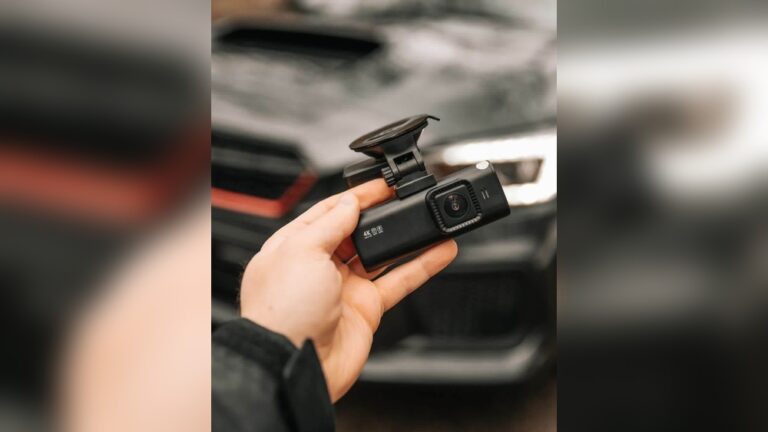
Dash cams are small video cameras mounted inside a vehicle, usually on the windshield. They record while you drive and often use loop recording. Many models add GPS, G-sensors, Wi‑Fi, or night vision. I use them for evidence after collisions, preventing fraud, and capturing long drives.
Why recording time matters:
- It decides how long footage stays before old files are erased.
- It affects whether you have evidence hours or days after an incident.
- It changes how often you must review or back up clips.
If your dash cam overwrites files too fast, you can lose key footage. If it records longer, you have more time to save what matters. I’ll show simple steps to get the hours you actually need.
The Main Factors Affecting Dash Cam Recording Hours
Dash cams don’t have a fixed recording time. Instead, the hours depend on several key factors. Let’s break them down clearly:
1. Memory Card Capacity
Most dash cams record to a microSD card. The card size is the biggest factor in total hours.
- Common sizes: 16GB, 32GB, 64GB, 128GB, 256GB, 512GB, and increasingly 1TB.
- Larger cards give more hours. But limits exist: some cameras only accept up to 128GB or 256GB.
Tip from experience: choose a high-endurance microSD (for example, SanDisk High Endurance or Kingston Endurance). These cards survive constant writing and high temperature better than standard consumer cards.
2. Video Resolution And Quality
Higher resolution produces larger files. Common options:
- 1080p (Full HD): Clear image, moderate file size. Works for most evidence needs.
- 720p (HD): Lower detail, smaller files. Good if you need long recording time.
- 1440p or 4K: Much clearer. Files grow fast and reduce recording hours.
Bitrate (data per second) matters a lot. Two 1080p cams can use very different space if one records at 6 Mbps and one at 20 Mbps.
3. Frame Rate
Frame rate (fps) is frames per second.
- Most dash cams use 30 fps.
- Some use 60 fps for smoother motion.
- Lower fps (24 or 15) saves space, but motion can look choppy.
Cutting fps from 60 to 30 almost halves file size, with minimal loss for many users.
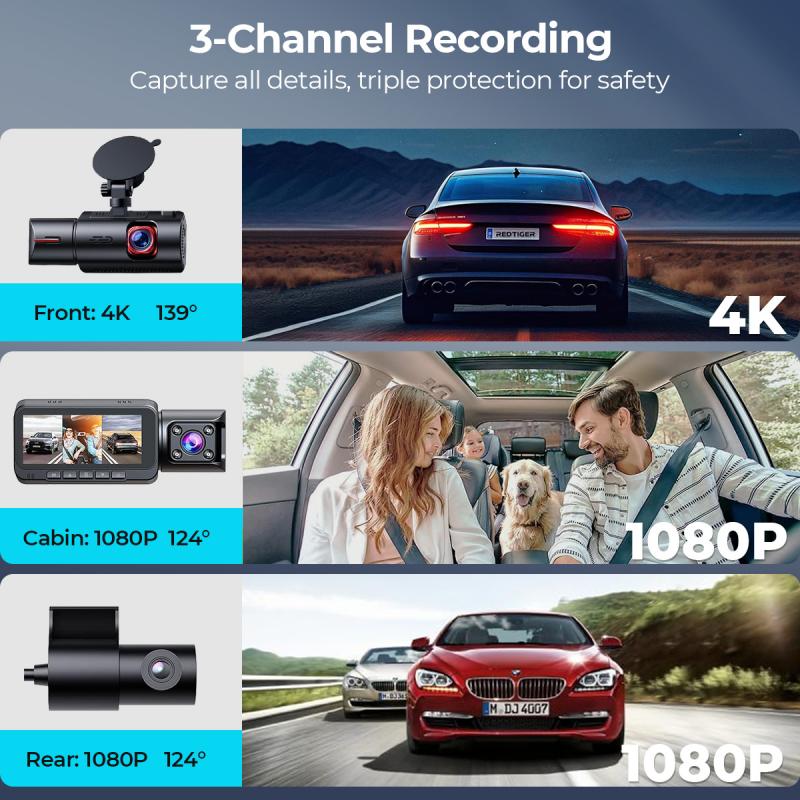
4. Number Of Cameras
Dual systems (front + rear, or interior) double storage needs. If you run two cameras at the same resolution and bitrate, plan for roughly twice the space.
5. Compression Technology
Codecs compress video to reduce file size. The main options:
- H.264: Older and widespread. Decent balance of quality and file size.
- H.265 (HEVC): Newer and more efficient. Can cut file size nearly in half at the same quality.
If your camera supports H.265, use it. You’ll get far more recording hours per GB.
6. Loop Recording Setting
Dash cams often record in loops—short clips of 1, 3, or 5 minutes. When the card fills, the oldest clips are overwritten. Loop length does not change total hours, but it affects how footage is organized and how easy it is to find clips.
7. Other Features
- Audio recording: Small increase in file size.
- GPS data: Minimal size impact but adds value for evidence (speed, coordinates).
- Parking mode: Records only when motion or impact is detected, which can greatly extend usable storage.

Credit: www.gpsinsight.com
How To Calculate Dash Cam Recording Hours
There’s no single answer, but you can estimate recording time with a simple formula.
Recording Time = Memory Card Size (MB) ÷ Video Bitrate (MB/s)
Most people don’t know bitrate. Use typical values for common settings instead. I’ll show the math and give quick estimates you can use.
Example Calculation
Suppose you have a 32GB card and the dash cam records 1080p at 30fps with H.264.
- 32GB = 32,000 MB (approx.)
- Typical bitrate for 1080p H.264: ~12 Mbps = ~1.5 MB/s
- Total hours: 32,000 MB ÷ 1.5 MB/s = 21,333 seconds ≈ 5.93 hours
So that setup gives about 6 hours before overwriting. If you switch to H.265, expect roughly double the hours at the same visible quality.
Real-world Recording Hours For Common Settings
Here are practical averages for typical dash cam settings.
| Card Size | 720p (HD) | 1080p (Full HD) | 4K (Ultra HD) |
|---|---|---|---|
| 32GB | ~10 hours | ~6 hours | ~2 hours |
| 64GB | ~20 hours | ~12 hours | ~4 hours |
| 128GB | ~40 hours | ~24 hours | ~8 hours |
| 256GB | ~80 hours | ~48 hours | ~16 hours |
These are averages. Your camera’s bitrate, compression, and features (like dual cameras or parking mode) will change these numbers. Use them as a quick guide when choosing a card or settings.
Non-obvious Insight 1
Many buyers assume the largest microSD automatically gives the most hours. But some dash cams only support a maximum card size (often 128GB or 256GB). Always check your camera manual. I’ve seen people buy 512GB cards that their camera won’t accept.
Non-obvious Insight 2
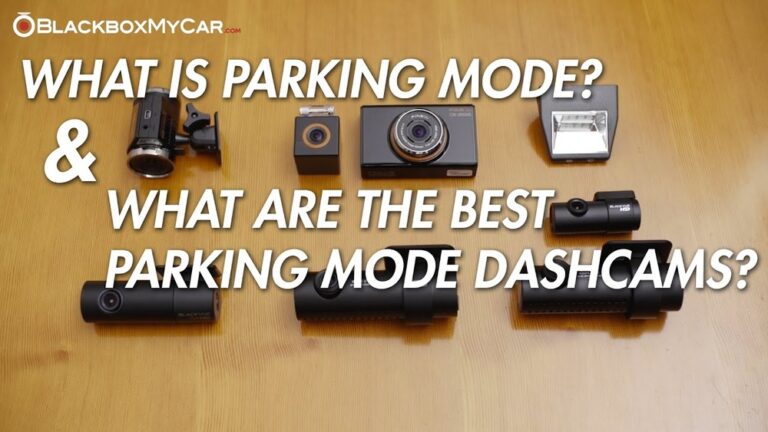
If your dash cam records both front and rear, storage is shared. A 64GB card with dual cameras usually yields about 6 hours per camera, not 12 hours total. Plan for shared storage in dual- or triple-channel systems.
Comparing Dash Cam Models: Recording Time Differences
Dash cam models vary widely. Here’s a comparison of popular units and their estimated recording hours using each model’s max supported card.
| Dash Cam Model | Max Card Supported | Resolution | Estimated Recording Hours (Max Card) |
|---|---|---|---|
| Viofo A129 Duo | 256GB | Dual 1080p | ~24 hours (front), ~24 hours (rear) |
| Garmin Dash Cam Mini 2 | 512GB | 1080p | ~96 hours |
| Nextbase 622GW | 128GB | 4K | ~8 hours |
| BlackVue DR900X | 256GB | 4K | ~16 hours |
Manufacturer figures are estimates. Real-world hours depend on bitrate choices, frame rate, and whether you run dual cameras or parking mode.
How Loop Recording Works
Most dash cams use loop recording. That means:
- The camera divides footage into short clips (often 1–5 minutes).
- When the card fills, the oldest clips are erased first.
- New footage automatically replaces old footage.
Loop recording keeps your camera running without you managing storage. But important clips can be overwritten. Many cameras let you “lock” clips with the G-sensor or manually so they won’t be erased.
Practical Tip
If an incident happens, save the clip immediately. Don’t wait—loop recording can overwrite it in hours or days depending on card size.
The Role Of Video Compression
Compression is a major factor for recording time. H.265 (HEVC) is about twice as efficient as H.264. That means a 128GB card might give you ~24 hours at 1080p with H.264, but ~48 hours with H.265 at similar perceptual quality.
Example
A 128GB card with H.264 might give ~24 hours at 1080p. With H.265 you could see ~48 hours. Not all dash cams support H.265, so check specs.
How To Maximize Your Dash Cam’s Recording Hours
You can stretch recording time a lot with a few changes. I use these steps on every install.
Choose The Right Resolution
If you don’t need ultra-high detail, set the camera to 720p or 1080p. That saves space and gives many more hours while still capturing usable evidence.
Adjust Frame Rate
Lowering fps from 60 to 30 can nearly double recording time. For most road recording, 30 fps is enough.
Use Efficient Compression
If your camera supports H.265, enable it. You’ll gain hours without dropping visible quality.
Buy The Largest Supported Memory Card
Check your dash cam manual for maximum supported card size. Install the largest size it supports and choose a high-endurance card for durability.
Manage Loop Recording Settings
Longer loop files (e.g., 5 minutes) make reviewing easier. Use locking features to protect important clips from being overwritten.
Regularly Save Important Clips
After an incident, transfer footage to your phone or PC. Cloud backup helps too. Don’t assume the camera will keep the clip for weeks.
Clean And Format Your Card
Format the card in the camera monthly. This clears fragmentation and locked files and reduces the chance of corruption. I always keep a spare pre-formatted card in my glovebox.
Common Mistakes With Dash Cam Recording Time
People often lose footage or buy wrong gear because of simple mistakes. Avoid these:
- Ignoring card compatibility: The camera may not support 256GB or 512GB cards.
- Setting too high resolution: 4K looks great, but it eats storage fast.
- Forgetting dual camera split: Hours are shared between front and rear.
- Not saving clips: Loop recording will erase important clips unless saved or locked.
- Skipping card maintenance: Unformatted or low-quality cards can fail.
Credit: www.kentfaith.com
Real-life Examples Of Dash Cam Recording Time
Here are some real setups and what I’ve seen on the road:
- Taxi driver, 1080p, 64GB, front only: ~12 hours on average.
- Rideshare driver, dual cameras, 128GB: ~12 hours per camera.
- Commuter, 32GB, 720p, single camera: ~10 hours.
For most drivers, a 64GB or 128GB card covers a full day. If you need multiple days’ footage, choose a larger card, enable H.265, or lower bitrate.
Dash Cam Recording Time For Parking Mode
Parking mode records only when motion or impact triggers it. That makes storage use unpredictable but usually efficient.
- Each triggered clip uses only a few MB to a few dozen MB depending on duration and quality.
- With a 128GB card you can store dozens to hundreds of parking events.
If you park in busy areas, expect more triggers and faster card usage. Review and clear parking clips regularly.
Tip
If you park in crowded spots, set parking mode sensitivity lower or increase card size. Review parking events weekly to avoid running out of space.
Legal And Practical Limits On Recording Time
There are legal and practical limits to store footage.
- In the EU, GDPR and local laws may restrict how long you keep footage and when you must delete it.
- In the US, laws vary by state; privacy concerns may apply in private recordings.
Practically, keep clips only as long as needed. For evidence, save incidents and delete routine driving footage periodically.
How To Check Your Dash Cam’s Actual Recording Hours
You can test your camera to get exact numbers for your settings.
- Insert a freshly formatted card.
- Choose resolution, fps, and compression you plan to use.
- Start recording and note the time.
- Record until the card fills or until files begin overwriting.
- Check the total footage length to measure actual hours.
This test gives the most accurate answer for your exact dash cam and settings. I recommend doing it once after installation.
Dash Cam Recording Time: The Big Picture
For most people, recording hours are about balance:
- Enough hours to cover your daily driving or shifts.
- Good enough quality to provide clear evidence.
- A card size your camera supports.
- Smart settings to avoid running out of space.
If you drive long hours or want multiple days of footage, invest in a larger card and efficient compression. If you only need short clips, you can afford higher resolution with a smaller card. I match my settings to driving patterns: long trips get lower bitrate and larger cards; short errands get higher quality with smaller cards.
Data Table: Dash Cam Recording Hours By Setting
Practical guide for common setups you’ll find in the real world.
| Setting | Card Size | Estimated Hours | Notes |
|---|---|---|---|
| Single 1080p @ 30fps, H.264 | 64GB | ~12 hours | Standard quality |
| Dual 1080p @ 30fps, H.264 | 128GB | ~12 hours per camera | Front + rear |
| Single 720p @ 30fps, H.264 | 32GB | ~10 hours | Lower quality |
| Single 4K @ 30fps, H.265 | 256GB | ~32 hours | High quality, efficient compression |
How To Choose The Right Dash Cam For Your Recording Needs
When shopping, focus on these practical points:
- Card capacity: Verify largest supported card size.
- Resolution: Pick what you actually need for evidence.
- Compression: Prefer cameras with H.265 for efficiency.
- Dual cameras: Only if you need rear or interior views.
- Loop recording: Essential for continuous recording.
- Parking mode: Useful for unattended surveillance.
Common Buyer Mistake
A common error is focusing only on resolution and ignoring card compatibility and compression. You might buy a 4K camera that needs a 256GB card to store a few hours—and then find your camera only supports 128GB. Read specs carefully before buying.
Dash Cam Recording Hours Vs. Cloud Storage
Some dash cams offer cloud backup. That helps keep important clips safe off-device, but it does not increase how many hours your camera can record to its local card.
- Cloud storage backs up event clips and protects against theft or card failure.
- Cloud plans often cost monthly fees.
- Use cloud storage as a backup, not a replacement for a large local card.
How Dash Cam Recording Hours Compare To Other Devices
Compared to other cameras:
- Smartphones: Limited by battery and internal storage. Not ideal for continuous loop recording.
- GoPros: Good image quality but not optimized for constant loop overwrite.
- Security cameras: Often use large hard drives and can keep weeks of footage, but they are stationary.
Dash cams balance compact size, continuous recording, loop management, and auto-locking features—designed specifically for vehicles.
Upgrading Your Dash Cam For More Recording Hours
If you need more hours, these upgrades help:
- Upgrade your memory card (within the camera’s supported max).
- Lower resolution or fps to reduce file sizes.
- Enable H.265 compression if available.
- Choose a model that supports larger cards or has built-in cloud options.
Data Table: Dash Cam Upgrades And Recording Time
| Upgrade | Effect on Hours | Typical Cost |
|---|---|---|
| Increase card size (64GB → 128GB) | Doubles recording hours | $15–$30 |
| Switch to H.265 compression | Up to 2x more hours | Depends on dash cam model |
| Lower resolution (4K → 1080p) | Up to 4x more hours | Free (settings change) |
| Lower frame rate (60fps → 30fps) | Nearly doubles hours | Free (settings change) |
What Happens When Your Card Fills Up
With loop recording, the dash cam overwrites the oldest files automatically. If you don’t save an important clip, you can lose it. If the card fills with locked files, the camera may stop recording. Regularly check and delete old or unnecessary clips.
Can Dash Cams Record Non-stop For Days?
Yes—if you have a large enough card and efficient settings.
- Most dash cams run off the vehicle power and stop when the car is off.
- Some have battery or capacitor backups for short parking mode events—these do not support nonstop days of recording.
- To record for days, run lower resolution, use H.265, and install a large, supported card or connect to external power and storage solutions.
Dash Cam Recording Hours In Extreme Conditions
Heat and cold affect both the dash cam and microSD card. In hot climates, cards can fail sooner; in cold climates, batteries and screens may underperform. Use high-endurance cards rated for extreme temperatures. I recommend keeping backups of critical footage if you operate in harsh conditions.
Future Trends: Dash Cam Recording Time
Dash cam tech keeps improving. New models support larger cards, better compression (H.265 and newer), and cloud backups. Expect cameras to handle 512GB and 1TB cards more commonly, giving hundreds of hours of footage for efficient settings. Also watch for smart vehicle integration where footage is offloaded to a car’s telematics system.
External Resource
For more technical details about dash cams and memory cards, visit Wikipedia.
FAQs About How Many Hours Can a Dash Cam Record
How Many Hours Can A Dash Cam Record With A 64gb Card?
Usually, a 64GB card gives about 12 hours at 1080p, or 20 hours at 720p. With dual cameras, hours split between front and rear. At 4K, expect roughly 4 hours. These are averages—your bitrate and compression will change the result.
What Happens When The Dash Cam’s Memory Card Is Full?
With loop recording, the dash cam overwrites the oldest files with new footage. Locked files are protected, but too many locked files can stop recording. Save important clips off the card to avoid losing them.
Can I Use A Larger Memory Card To Increase Recording Time?
Yes—up to your dash cam’s supported max. Many models accept up to 128GB or 256GB. Using a larger card than supported can cause errors or not work at all. Check the manual and firmware notes.
Does Video Quality Affect Recording Hours?
Absolutely. Higher resolution and frame rate create larger files, which reduce recording hours. Lowering quality or enabling H.265 can double or quadruple recording time depending on settings.
How Can I Check My Dash Cam’s Actual Recording Hours?
Test it. Record with a freshly formatted card at your chosen settings and run the camera until files start being overwritten. That gives the exact number for your setup. I do this after any major setting change.
Final Thoughts
Choosing a dash cam is more than picking the highest resolution or biggest memory card. It’s about matching settings, card capacity, and features to your driving patterns. Use H.265 when available, choose high-endurance microSD cards, and test your actual recording hours. Save important clips and keep your card maintained. Do this and your dash cam will give reliable evidence when you need it most.

I am Julian Drive, an automotive enthusiast and repair expert with over 7 years of hands-on experience in vehicle maintenance. At Carora Hub, I simplify complex car issues into easy-to-follow DIY guides to help drivers stay safe and save on repair costs.