Yes, it’s worth it for most buyers but only if you keep paying for the connected services. Factory navigation on the 4Runner gives you turn-by-turn directions that work when your phone has no signal, on a screen that doesn’t eat your phone battery. If you mostly drive city streets with good coverage, a phone app does the same job for free.
Where your Toyota 4Runner navigation system matters

The one thing that decides this is where you drive, not how the screen looks. Factory nav earns its place on forest roads, in national parks and in mountain passes where cell coverage drops. If your week is city commuting and highway miles, your phone already covers it.
The most common mistake happens before anyone starts: buying the trim level just for the navigation head unit. Many 4Runner owners never open the built-in app after month one, because phone mirroring is faster to use and updates itself. Check which features come with each trim on Toyota’s official 4Runner page before you pay extra for the wrong reason.
How to set it up and actually use it
- Pair your phone first. Connect by Bluetooth or USB and allow contacts and location access. Address entry by voice needs that permission, and without it you’ll be typing every destination by hand.
- Save your home and work addresses. Enter both once in the nav menu. It cuts destination entry to two taps, which matters most when you’re already moving and shouldn’t be fiddling with a screen.
- Download the offline map region before a trip. Do this on Wi-Fi the night before, not in the parking lot. A region download takes a few minutes per state, and doing it early means the map is there when the signal isn’t.
- Check your connected services status. Subscription-based features like live traffic and remote services run on a trial that expires. Look up your account status on Toyota’s owner site, because an expired plan quietly turns live traffic off.
- Update the map data once a year. Map updates come on a USB drive or download, and they cost money after any included period. Roads change, and a two-year-old map will route you onto a road that no longer connects.
- Set your route preference before you leave. Choose avoid highways or avoid tolls in the settings menu, not mid-drive. Changing it later forces a recalculation that can add miles you didn’t plan for.
Tip: Don’t trust live traffic on a route you drive daily. It lags behind reality in fast-changing jams, and a phone app usually refreshes sooner.
Tip: If the screen freezes, hold the volume knob down for about 10 seconds to force a restart. If it keeps freezing, that’s a dealer visit, not a DIY fix.
How long setup and updates take
Budget about 15 minutes for the first setup, and plan map updates around a longer errand. The table below assumes a recent model year with the current head unit; older units with SD-card maps work differently, so check your owner’s manual for your year.
| Situation | How long | What changes it | What to watch for |
|---|---|---|---|
| First pairing and setup | 10–15 minutes | Phone model, Bluetooth quirks | Permission prompts you skip |
| Saving home and work | 2 minutes | None | Wrong address saved once |
| Offline map download | 5–20 minutes per region | Region size, Wi-Fi speed | Doing it on cell data |
| Full map update | 30–60 minutes | USB vs download, model year | Don’t turn the car off mid-update |
| Subscription renewal | 5 minutes online | Plan type | Auto-renew you forgot about |
If a map update is running far longer than an hour, don’t unplug the drive. Stop the car, leave the ignition on, and let it finish — pulling the drive mid-write can leave the map database unusable.
Signs the navigation is working right
You’ll know it’s set up properly when the car finds your position within a few seconds of start-up and the arrow moves smoothly along the road, not jumping between streets. Voice guidance should start about half a mile before a turn on highways, and sooner on city streets.
The test that settles it: drive a route you know well and see whether the arrival time matches reality. If the estimate is wildly off, your traffic data probably isn’t updating — that’s a subscription or signal issue, not a map issue.
For road data itself, the reference is the map supplier, not the car maker. Toyota’s nav uses map data licensed from HERE Technologies, and HERE publishes its own coverage and update schedule. If a road near you is missing, checking the supplier tells you whether it’s a data gap or a head-unit fault.
Mistakes that ruin the experience

- Letting the subscription lapse without noticing. Live traffic and connected features stop, and the map goes static. Check your renewal date and decide on purpose, not by surprise.
- Skipping map updates for years. New housing developments and changed interchanges send you the wrong way. Update at least once a year if you rely on it.
- Typing destinations while driving. It pulls your eyes off the road for seconds at a time. Set the destination before you move, or use voice entry.
- Ignoring the phone option completely. Mirroring gives you fresher maps and traffic for free. Use the built-in nav where signal is weak, and your phone where it’s strong.
- Expecting phone-level search. Built-in search is slower and clunkier than a phone app. Enter the address, not a business name, and you’ll get there faster.
Related guides
- Best Navigation System For Toyota Prius: Top Upgrade Picks
- How to Update Toyota Sienna Navigation System: Easy Step-by-Step Guide
- Which tires are best for Toyota 4Runner off-roading
FAQs Of Is the Toyota 4Runner Navigation System Worth It
Is Toyota 4Runner navigation system worth it?
Yes, if you drive where cell signal drops mountains, parks, rural routes. The built-in system keeps working with no bars and no phone battery drain. If nearly all your driving is in a city with strong coverage, a phone app does the job for free and updates itself, so the extra cost buys you little.
How long does it take to update 4Runner navigation maps?
Plan on 30 to 60 minutes for a full map update on a recent model year, done with the engine running or the ignition on. Older units using SD cards swap in minutes. Exact times vary by model year, so check your owner’s manual or the Toyota owner site for your vehicle.
Can I use Apple CarPlay or Android Auto instead?
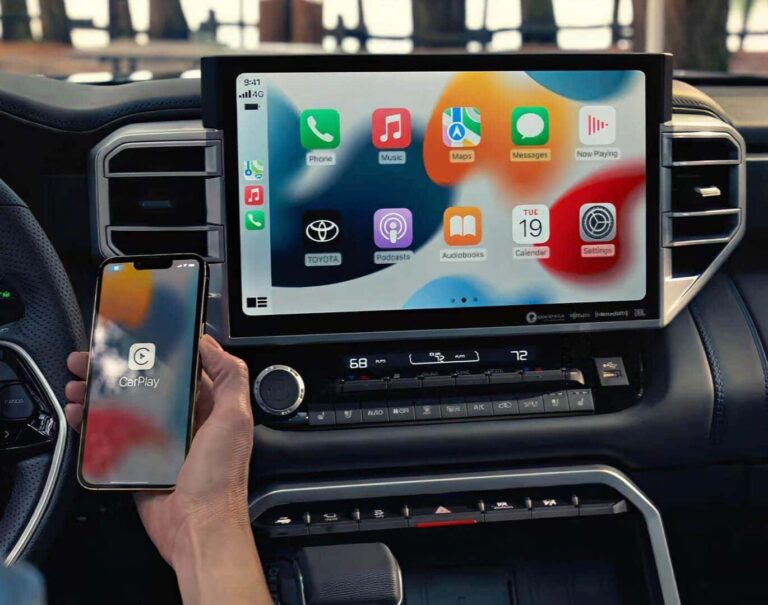
Yes, on model years that support it. Both mirror your phone’s maps onto the factory screen, which gives you current traffic and free updates. You lose nothing except the offline ability if your phone has no signal, the mirrored map may go blank while the built-in nav keeps working.
Is the factory navigation safe to use while driving?
It’s safe when you set the destination before you move. Most systems lock address entry once the car is rolling, which is deliberate. Voice commands work while moving. Typing on any screen at speed takes your eyes off the road, and no feature is worth that risk.
What happens if I don’t renew the subscription?
Live traffic, weather overlays and connected services stop working. Basic turn-by-turn navigation on the stored map usually keeps running, but it won’t route around jams and won’t show new roads. Check your plan details on Toyota’s owner site, since what stays active varies by model year and package.
How often should I update the maps?
Once a year is enough for most drivers. If you drive the same routes daily, you could stretch it to every two years. If you travel to new cities often, update yearly new roads and changed exits are the main reason a route goes wrong.
Does the navigation work without a phone connected?
Yes. The built-in system uses GPS and its stored map, so it runs with no phone paired and no cell signal. You lose live traffic and some search features, but turn-by-turn guidance and the map itself keep working. That’s the main reason people keep it.
Conclusion
The catch here is your own driving map the places you actually go each month. Look at your last ten trips and count how many had weak signal. That number, not the spec sheet, tells you whether the factory nav earns its cost for you.

I am Julian Drive, an automotive enthusiast and repair expert with over 7 years of hands-on experience in vehicle maintenance. At Carora Hub, I simplify complex car issues into easy-to-follow DIY guides to help drivers stay safe and save on repair costs.