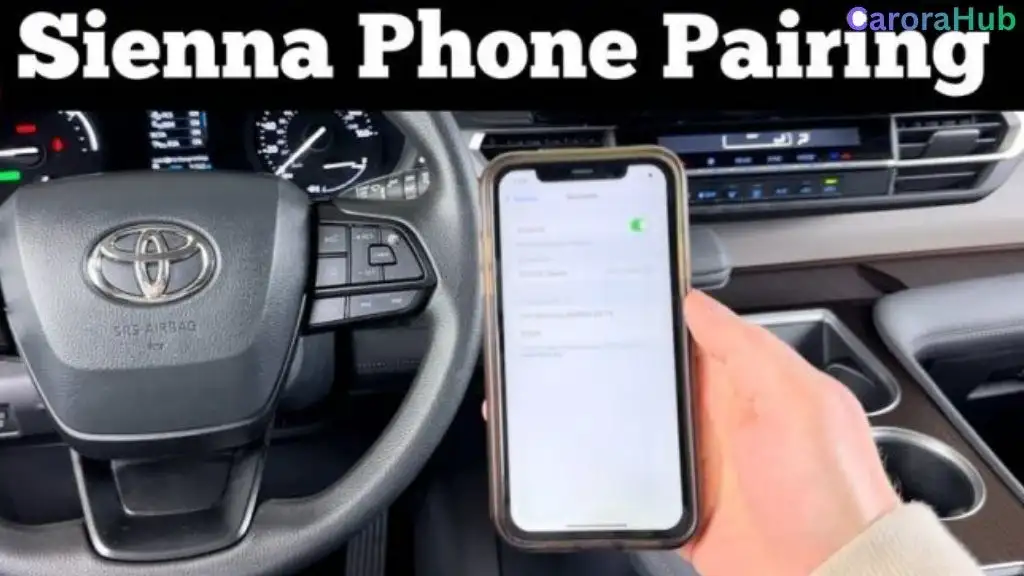
If you’ve ever struggled to connect your phone to your Toyota Sienna, you’re not alone. Pairing Bluetooth might seem tricky at first, but once you know the simple steps, it becomes second nature.
Imagine making hands-free calls or streaming your favorite music effortlessly every time you get in your car. In this guide, you’ll learn exactly how to pair Bluetooth on your Toyota Sienna quickly and without frustration. Keep reading, and you’ll enjoy a safer, more connected drive in no time.

Credit: www.youtube.com
Prepare Your Devices
Preparing your devices is the first step to pair Bluetooth on your Toyota Sienna. It helps make the connection smooth and quick. Follow simple steps to get your phone and car ready.
Check your phone’s settings and make sure Bluetooth is working. This saves time and avoids frustration later.
Check Bluetooth Compatibility
Not all phones support every Bluetooth version. Toyota Sienna usually works with Bluetooth 4.0 or higher. Check your phone’s Bluetooth version in the settings. Your phone must support hands-free calling and audio streaming. Without these, pairing may fail or features might not work.
Enable Bluetooth On Your Phone
Turn on Bluetooth in your phone’s settings before pairing. Open the Bluetooth menu and switch it on. Make your phone visible to nearby devices. This lets your Toyota Sienna find and connect to your phone easily.
Credit: www.sparkstoyota.com
Access The Sienna’s Infotainment System
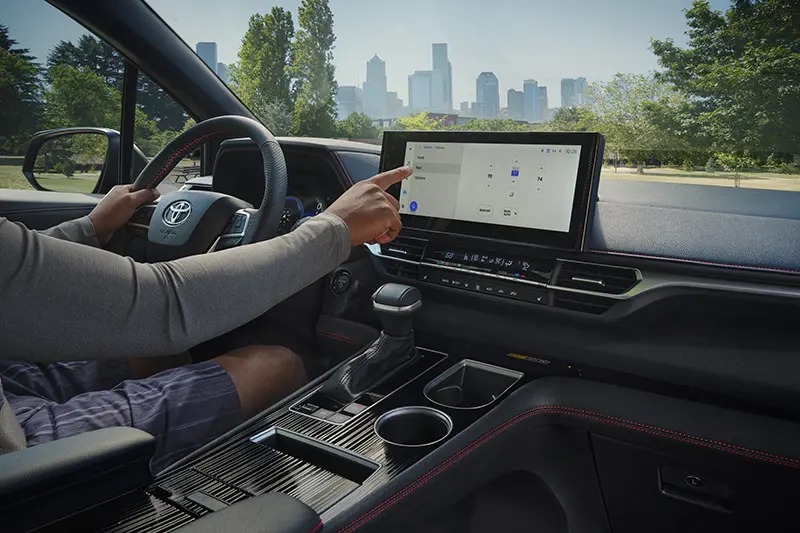
Accessing the Toyota Sienna’s infotainment system is the first step to pair Bluetooth. The system lets you connect your phone to make calls, play music, and use voice commands. Knowing how to reach the Bluetooth settings saves time and makes the process smooth.
Start by turning on the vehicle. The infotainment screen will light up and become ready to use. Then, navigate to the Bluetooth settings using the touchscreen or buttons. This section controls all wireless connections and prepares the system for pairing.
Turn On The Vehicle
Insert the key or press the start button to power on the Sienna. The dashboard lights and infotainment screen will activate. Wait a few seconds for the system to fully boot up. The screen shows the home menu once ready.
Navigate To Bluetooth Settings
Tap the “Menu” or “Setup” button on the infotainment screen. Look for the “Bluetooth” option in the list that appears. Select it to open Bluetooth settings. Here you can add a new device or manage existing connections.
Read More: How to Change Brake Pads on a Toyota Sienna
Start The Pairing Process
Starting the Bluetooth pairing process in your Toyota Sienna is simple. It connects your phone to the vehicle for hands-free calls and music. Follow clear steps to begin pairing quickly and safely.
Select Add Device
Turn on your Sienna’s infotainment system. Go to the Bluetooth settings menu. Find and select the option labeled “Add Device.” This action tells the system to search for new phones nearby. Stay inside the vehicle during this step to keep the connection stable.
Make Your Phone Discoverable
Open the Bluetooth settings on your phone. Enable Bluetooth if it is off. Set your phone to “Discoverable” or “Visible” mode. This makes your phone visible to the Toyota’s system. Keep your phone close to the vehicle for best results. Your phone and the Sienna will now find each other.
Connect And Confirm
Connecting your phone to the Toyota Sienna’s Bluetooth system is simple. The “Connect and Confirm” step ensures your phone and vehicle pair correctly. This part is important to make calls and play music hands-free.
Choose Your Vehicle On Phone
Turn on Bluetooth on your phone. Look for your Toyota Sienna in the list of available devices. Tap on it to start pairing. The name usually shows as “Toyota Sienna” or similar.
Verify Passkey Or Pin
The system will show a passkey or PIN on both the car screen and your phone. Check that both numbers match exactly. Confirm the code on your phone to pair safely. This step prevents wrong connections.
Allow Access To Contacts And Messages
Your phone will ask to share contacts and messages with the car system. Allowing this gives you hands-free calling and message alerts. You can choose to allow or deny this access anytime.
Troubleshoot Common Issues
Pairing Bluetooth on your Toyota Sienna usually works smoothly. Still, some common problems can stop the connection. Troubleshooting helps fix these issues fast. Here are simple steps to try before calling for help.
Reboot Devices
Turn off your phone and your car’s system. Wait for a few seconds. Then turn them back on. This simple step clears minor glitches. It refreshes the connection and often solves pairing problems.
Delete Old Connections
Too many saved devices can cause trouble. Go to your car’s Bluetooth settings. Remove old or unused devices from the list. Also, clear your phone’s Bluetooth memory. This frees space and avoids confusion in pairing.
Update Software
Check for software updates on your phone and car system. Updates fix bugs and improve performance. Updated software helps devices talk clearly and connect easily. Keep both devices current for smooth Bluetooth pairing.
Manage Paired Devices
Managing paired Bluetooth devices in your Toyota Sienna keeps your system organized. It helps avoid confusion when multiple phones connect. You can rename devices, remove old ones, and switch between active connections easily. This makes your driving experience smoother and safer.
Rename Devices
Renaming paired devices helps you identify them quickly. Go to the Bluetooth settings menu in your Sienna. Select the device you want to rename. Enter a new, simple name that you will remember. This step saves time when choosing a device to connect.
Remove Unused Devices
Removing unused devices clears clutter from your Bluetooth list. Open the paired devices list in the settings. Find devices you no longer use or recognize. Select and delete them to free up space. This keeps your system running efficiently.
Switch Between Devices
Switching between devices lets you play audio from different phones easily. Access the Bluetooth menu in your Sienna. Select the device you want to connect to. The system will disconnect the current device and link to the new one. This process is quick and simple on the go.
Credit: www.gtacarkits.com
Frequently Asked Questions
How Do I Connect Bluetooth On Toyota Sienna?
To connect Bluetooth, enable Bluetooth on your phone. On the Sienna’s infotainment, select “Add Device. ” Choose your phone from the list, then confirm the pairing code. Once paired, your phone will connect automatically in the future.
Can I Pair Multiple Phones With Toyota Sienna?
Yes, Toyota Sienna supports multiple phone pairings. However, only one phone can connect at a time for calls and media. You can switch between paired phones through the infotainment system’s Bluetooth settings.
Why Won’t My Toyota Sienna Bluetooth Connect?
If Bluetooth won’t connect, restart your phone and Sienna’s system. Ensure Bluetooth is active on your phone. Delete old pairings and try pairing again. Also, check for software updates in your vehicle’s infotainment system.
How To Remove A Paired Bluetooth Device In Toyota Sienna?
To remove a device, go to the Bluetooth settings in the Sienna’s infotainment system. Select the device you want to delete, then choose “Delete” or “Forget. ” This clears the connection and allows new pairings.
Bottom Line
Pairing Bluetooth on your Toyota Sienna is quick and simple. Follow the steps carefully to connect your device. Once paired, enjoy hands-free calls and music while driving. This adds safety and convenience on the road. Keep your phone’s Bluetooth on and stay connected.
Practice a few times if needed to feel confident. Your Toyota Sienna’s system works with most smartphones. Stay focused on driving, not on your phone. Enjoy a smoother, safer ride every time you connect.

Hello, I’m Norman. I work as a car researcher. I am the voice behind CaroraHub. I have over 15 years of experience. I give simple and useful car advice. I help with car care, cleaning, and small repairs. My goal is to help you keep your car healthy. I want car care to be easy and cheap for you. You can trust my tips to keep your car working well for a long time.