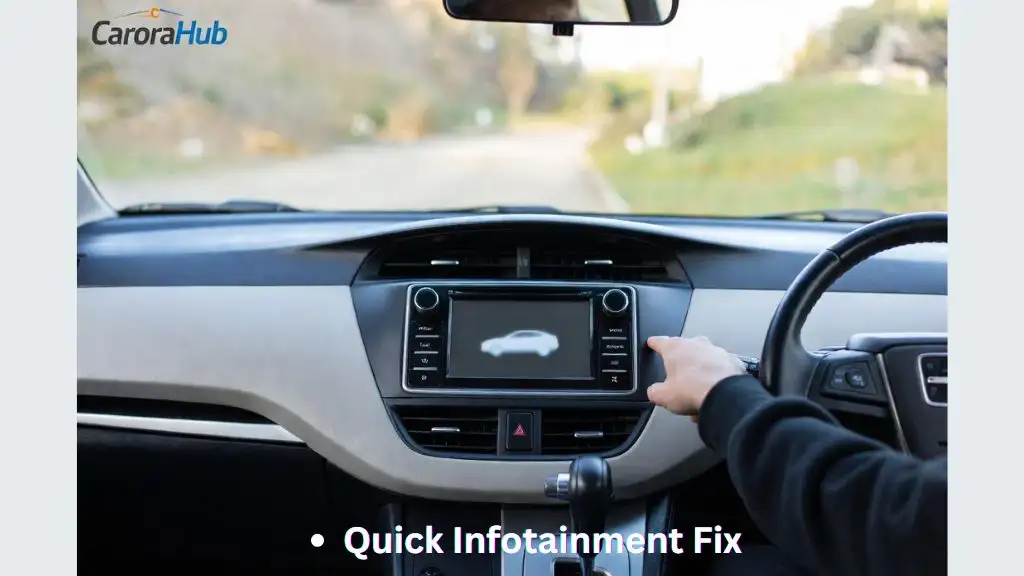
Is your Toyota Sienna’s infotainment system frozen and unresponsive? It’s frustrating when your screen won’t react, leaving you stuck without navigation, music, or important controls.
You rely on this system every day, and when it freezes, it disrupts your drive and peace of mind. But don’t worry—you’re not alone, and there’s a simple fix waiting for you. Keep reading to discover easy steps that will get your infotainment system back to work quickly, so you can enjoy your ride without any more interruptions.

Credit: amp.guideautoweb.com
Common Causes Of Infotainment Freezing
The Toyota Sienna’s infotainment system can freeze for several reasons. Understanding these causes helps fix the problem fast. The issue often arises from software, hardware, or connectivity troubles. Each factor affects the system’s performance differently.
Software Glitches
Software glitches cause many infotainment freezes. Bugs in the system’s code may disrupt normal functions. Outdated software versions can lead to crashes. Installing updates often solves these problems. Temporary errors in apps or the OS also cause freezing.
Hardware Issues
Hardware problems can freeze the screen or controls. Faulty wiring or loose connections affect the system’s power. Damaged components like the touchscreen or CPU may stop working. Overheating inside the dashboard can cause malfunctions. These issues need physical repairs or part replacements.
Connectivity Problems
Connectivity issues affect infotainment responsiveness. Weak Bluetooth or Wi-Fi signals can freeze the interface. Faulty USB or auxiliary cables may disrupt data flow. Incompatible devices cause conflicts with the system. Checking connections and devices often restores normal function.
Read More: How to Update Toyota Sienna Navigation System
Immediate Fixes To Try
The infotainment system in your Toyota Sienna can freeze at times. This makes it hard to use features like navigation or music. Trying quick fixes can often solve this problem fast. These methods do not need special tools or skills. They help reset the system and clear minor glitches. Start with simple steps before going for complex repairs.
Soft Reset Method
Press and hold the power button on the infotainment screen. Keep holding for about 10 seconds until the screen goes black. Release the button and wait for the system to restart. This method refreshes the system without turning off the vehicle. It often clears temporary bugs causing the freeze.
Restarting The Vehicle
Turn off the engine completely. Open and close the driver’s door to make sure the car shuts down fully. Wait for about 30 seconds before starting the engine again. Restarting the vehicle resets the electronics, including the infotainment system. This may remove frozen states and restore normal function.
Disconnecting The Battery
Open the hood and locate the car battery. Use a wrench to disconnect the negative terminal first. Wait for 10 to 15 minutes before reconnecting it. This cuts power to all systems and resets the car’s computer. It can fix deeper software issues causing the screen to freeze.
Updating The System Software
Updating the infotainment system software can fix many problems. A frozen screen or slow response often means the software needs an update. New updates improve system stability and add useful features. Keeping the system up to date helps your Toyota Sienna run smoothly. Follow simple steps to check and install updates safely.
Checking For Updates
Start by checking if your system has new updates. Turn on your Sienna’s infotainment system. Go to the settings menu and find the software update option. The system will search for available updates. You need a stable internet connection for this step. If an update is available, note its version and size. This information helps you decide when to update.
Installing Updates Via Usb
Download updates from Toyota’s official website using a computer. Save the update file on a USB drive formatted as FAT32. Insert the USB into your Sienna’s USB port. Follow the on-screen instructions to install the update. Do not turn off the car during installation. The system will restart automatically after updating.
Using Toyota’s Software Tools
Toyota offers special software tools for easier updates. These tools guide you through the update process step-by-step. You can download the tools from Toyota’s support page. Connect your vehicle to a computer with the tool running. This method ensures the update installs correctly. It also helps diagnose other system issues.
Advanced Troubleshooting Steps
Advanced troubleshooting helps fix your Toyota Sienna infotainment system quickly. These steps go beyond basic resets. They check deeper issues that cause freezing problems. Follow each step carefully for best results.
Resetting To Factory Settings
Resetting the system removes all saved data and settings. This often clears bugs causing the screen to freeze. Access the settings menu, then select “Factory Reset.” Confirm your choice to start the process. Wait for the system to restart fully.
Note: Backup important data before resetting. This step restores original software and can fix many issues.
Inspecting Wiring And Connections
Loose or damaged wires often cause infotainment problems. Check all cables behind the dashboard and under seats. Look for frayed wires or poor connections. Secure any loose plugs and replace damaged wires. Clean connectors to ensure good contact.
Proper wiring is critical for smooth system operation. A quick inspection can prevent many freezing errors.
Diagnosing With Obd-ii Scanner
Use an OBD-II scanner to find hidden system faults. This tool reads error codes stored in your vehicle’s computer. Connect the scanner to the port under the dashboard. Follow the scanner instructions to check for infotainment-related errors.
Error codes help identify specific hardware or software issues. Address these problems with targeted repairs or updates for the best fix.
Preventive Tips To Avoid Freezing
Preventing the infotainment system from freezing keeps your Toyota Sienna running smoothly. Simple care steps reduce the chance of glitches. These tips help maintain system speed and reliability. Follow easy habits to avoid annoying freezes and enjoy your drives.
Regular Software Maintenance
Keep the system software updated regularly. Updates fix bugs that cause freezing. Check for updates through Toyota’s official channels. Installing updates helps the system run faster and smoother. Set reminders to update every few months.
Avoiding Overloading The System
Limit the number of apps running at once. Too many apps use too much memory. Close unused apps to free up system resources. Avoid running heavy apps while driving. This keeps the system responsive and prevents lag.
Safe Use Of External Devices
Connect external devices properly to avoid errors. Use only compatible USB drives or phones. Remove devices safely before unplugging to prevent data corruption. Avoid using damaged or low-quality cables. These steps protect the system from crashes and freezes.
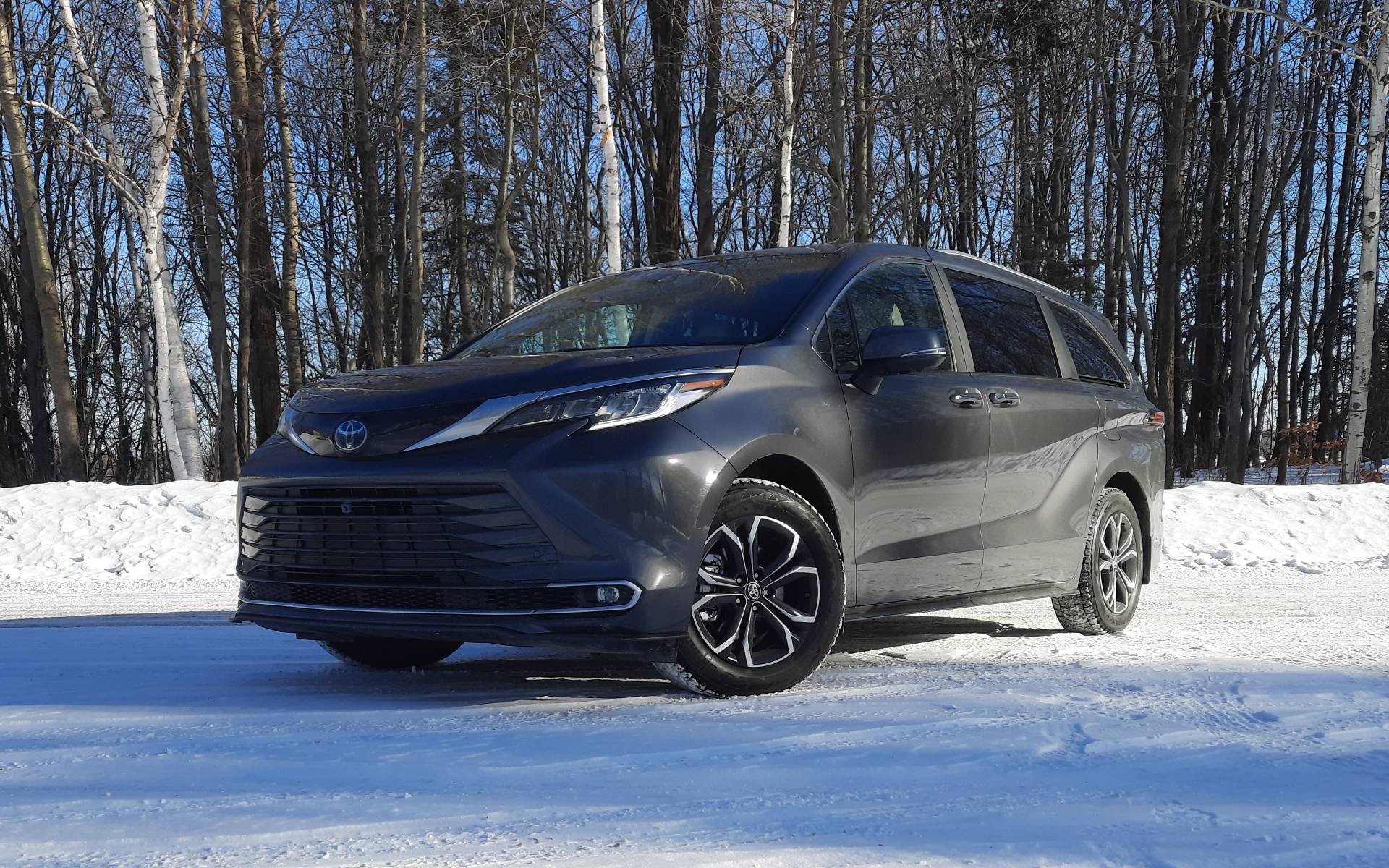
Credit: amp.guideautoweb.com
When To Seek Professional Help
Knowing when to seek professional help for your Toyota Sienna’s infotainment system is important. Some problems are easy to fix at home. Others need a trained technician. Acting at the right time can save you stress and money.
Signs Of Hardware Failure
Look for signs like a blank screen or no sound. The system may freeze often or restart by itself. Buttons or touchscreen might not respond. Strange noises or flickering lights show serious issues. These signs usually mean hardware problems, not software bugs.
Warranty And Service Options
Check your vehicle’s warranty before any repairs. Toyota may cover infotainment system fixes under warranty. Some issues might be included in extended service plans. Using warranty service can reduce your repair cost. Always ask about coverage details before paying.
Finding Authorized Toyota Technicians
Choose authorized Toyota technicians for repairs. They have the right tools and parts for your Sienna. Certified experts understand Toyota’s systems well. This ensures better and safer repairs. Use the Toyota website or dealer to find a local authorized service center.
Final Thoughts
A frozen infotainment system in your Toyota Sienna can be frustrating. Try restarting the system first to clear minor glitches. Keeping your software updated helps avoid future freezes. If problems continue, a professional check may be needed. Regular care ensures your system works smoothly every day.
Stay patient and follow these simple steps to fix the issue. Your Sienna’s infotainment system will be back to normal soon.
FAQs Of Infotainment System Frozen Fix Toyota Sienna
How Do I Reset A Frozen Toyota Sienna Infotainment System?
To reset, press and hold the power button for 10 seconds. The system will reboot and should function normally. This simple reset resolves most freezing issues quickly.
Why Does My Toyota Sienna Infotainment Freeze Suddenly?
Freezing often occurs due to software glitches, outdated firmware, or overheating. Regular updates and proper ventilation help prevent these issues and maintain smooth performance.
Can A Software Update Fix Toyota Sienna Infotainment Freezing?
Yes, updating the system software often resolves freezing problems. Check your Toyota dealer or official website for the latest firmware and installation instructions.
Is A Battery Disconnect Needed To Fix Infotainment Freezing?
Disconnecting the battery can reset the system but may erase saved settings. It’s a last resort if other resets don’t work and should be done carefully.

Hello, I’m Norman. I work as a car researcher. I am the voice behind CaroraHub. I have over 15 years of experience. I give simple and useful car advice. I help with car care, cleaning, and small repairs. My goal is to help you keep your car healthy. I want car care to be easy and cheap for you. You can trust my tips to keep your car working well for a long time.